| Registering a new User Account |
|---|
Registering a new User Account
Select the Register option from the Zingoolarity home page or the main menu.
If you have no user account for your Zingoolarity instance yet, you can easily register your email address for a new account here.
Zingoolarity optionally allows you to register in different so-called realms.
The default realm is called zingoolarity.
A realm is basically a completely separate and isolated database with its own Zingoolarity data objects.
It allows you to run for example different unrelated companies on the same Zingoolarity instance.
By default, the currently selected realm is used.
You can (and should) override it, if your company runs in a different realm.
In this case, select the correct realm first.
Enter your full name (Firstname Lastname), your full email address and some details about you (e.g. your role in the company).
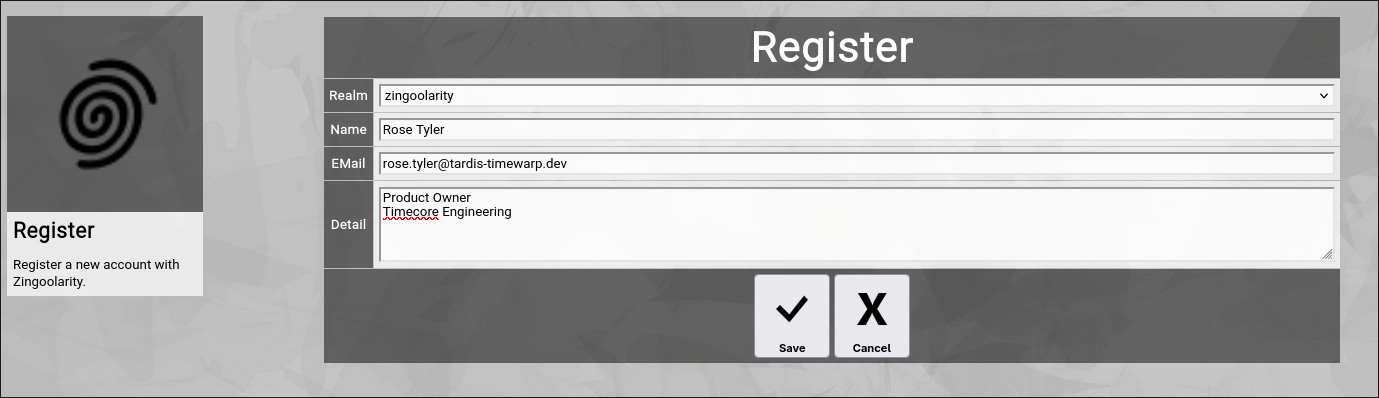
(Zingoolarity register screen)
If you have filled in the three fields and click the Save button, Zingoolarity will validate your input and if all fields are properly set, the new Register button will be shown:
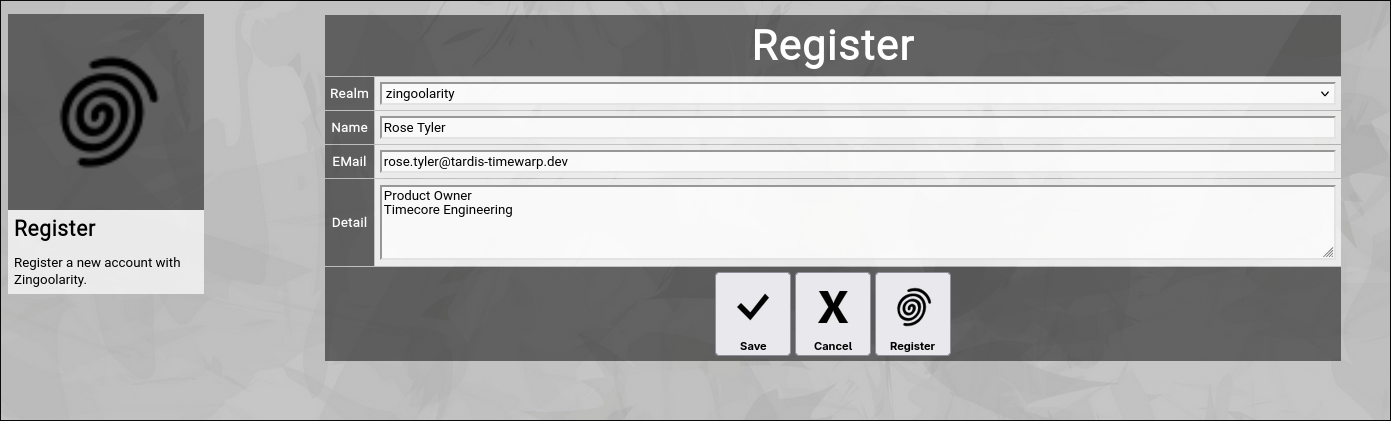
(Zingoolarity register screen after successful pre-validation of input)
Click this new Register button and Zingoolarity will create your new account.
Please note that your account needs the approval of one of the administrators of your Zingoolarity instance, before you can actually login.
But this does not prevent you from the next step:
Recovering your account via email. |
| Recovering an existing User Account |
|---|
Recovering an existing User Account
Select the Recover option from the Zingoolarity home page or the main menu.
If you have just registered a new user account with your Zingoolarity instance (or if you need to login to Zingoolarity from a new computing device), you can obtain your personal secret certificate by entering your email address here.
Zingoolarity optionally allows you to recover for different so-called realms.
The default realm is called zingoolarity.
A realm is basically a completely separate and isolated database with its own Zingoolarity data objects.
It allows you to run for example different unrelated companies on the same Zingoolarity instance.
By default, the currently selected realm is used.
You can (and should) override it, if your company runs in a different realm.
In this case, select the correct realm first.
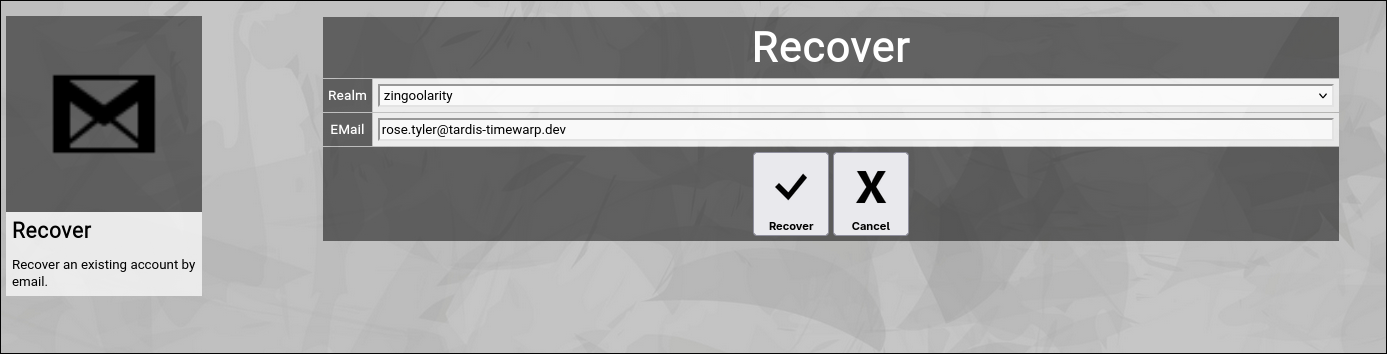
(Zingoolarity recover screen)
After clicking the Recover button, your Zingoolarity instance will send you an email, which contains a URL.
This URL will open the Login screen of your Zingoolarity instance with your personal secret certificate automatically filled in, so that you only need to click the Login button to login with the associated user account.
If no user account is associated with the entered email address, you will see an error message related to that. |
| Login with your Personal Secret Certificate |
|---|
Login with your Personal Secret Certificate
Select the Login option from the Zingoolarity home page or the main menu.
This screen will also be automatically invoked, if you click on the URL in the user account recovery email, which you can obtain by using the Recover option.
If you invoke the Login screen manually, you need to copy-and-paste your personal secret certificate manually from where you stored it (hopefully in a safe place!).
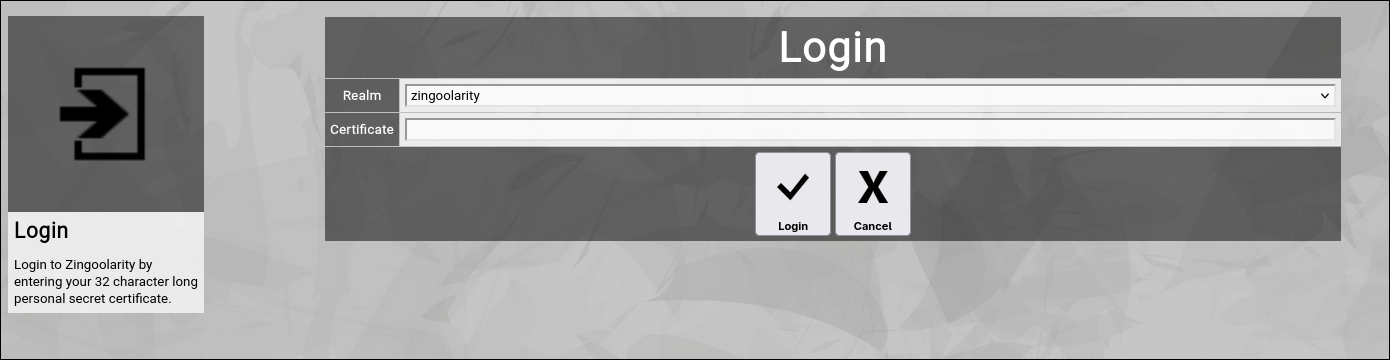
(Zingoolarity login screen)
Zingoolarity optionally allows you to login to different so-called realms.
The default realm is called zingoolarity.
A realm is basically a completely separate and isolated database with its own Zingoolarity data objects.
It allows you to run for example different unrelated companies on the same Zingoolarity instance.
If you invoked the login screen by following the link in your personal secret email which you received from Zingoolarity, the correct realm is automatically selected.
If you manually copy and paste your personal secret certificate, please enter the correct realm first.
Your personal secret certificate is by intention only barely readable when entered or pasted here (for security reasons).
Please note that login only completes successfully, if your user account is active.
If you have freshly registered, your new user account might still need to be approved by one of the administrators of your Zingoolarity instance.
Until this happens, your newly requested user account is inactive.
Please be patient. |
| Maintain your User Profile |
|---|
Maintain your User Profile
This option is only available if you already logged in with a valid user account.
Select the Profile option from the Zingoolarity home page or the main menu.
This option allows you to update your personal profile at any time.
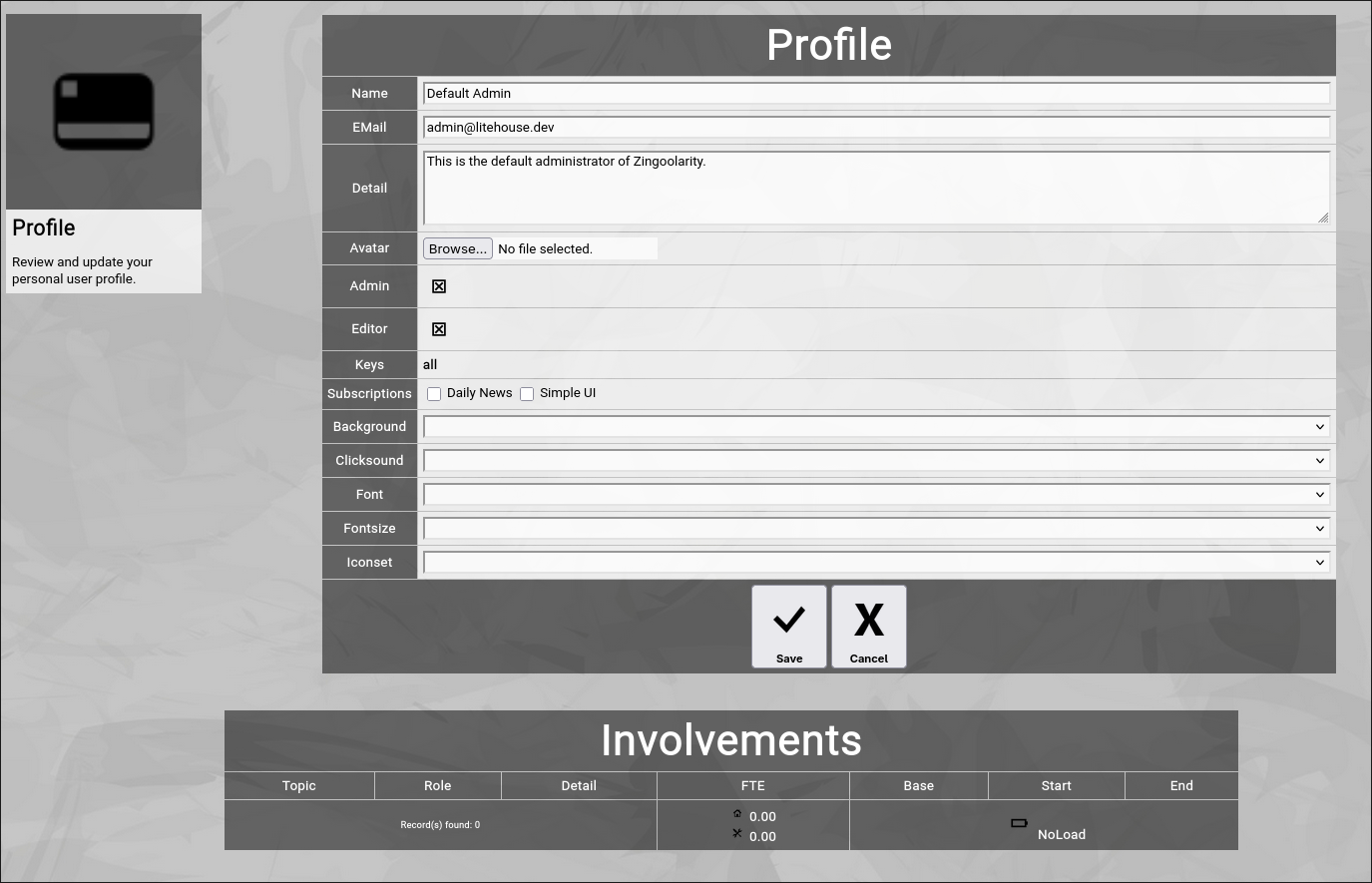
(Zingoolarity profile screen)
You can make changes to the following attributes of your user account:
- Change your name.
- Change your email address (be careful; if you enter a wrong email address here, you may be unable to recover your user account information by email in the future).
- Change your details.
- Upload an avatar picture (any png, jpg or gif image; usually a photo of yourself).
- Subscribe or unsubscribe from the user-specific options:
- Daily News
if subscribed, you will automatically receive a summary email at about midnight, which contains all actions of all topics of the closing day for your reading pleasure).
- Simple UI
(if subscribed, the user interface of Zingoolarity assumes that you are a casual read-only user and it automatically hides unnecessary complexity).
- Home URL
The optional home URL allows you to set a custom URL, which will be used for the "Main" buttons in the home screen, in the menu and in the top level menu bar.
If the user subscribed to the simplified UI, this will also replace the link from the splash screen.
- Change aspects of your user interface (background, clicksound, font, fontsize and iconset).
Click the Save button to apply the modified attributes or click the Cancel button to return to the home menu screen.
The screen also displays some read-only attributes of your user account:
- Admin
If this option is checked, you are an instance-wide administrator of Zingoolarity and therefore you have access to everything and can configure everything.
Note that this can be dangerous, because you are able to do things which influence the Zingoolarity instance as a whole.
- Editor
If this option is checked, you are a contributing user who is able to add and modify topics, depending on the security lock settings of the topics and your available keys.
- Keys
A space-delimited list of security keys which you own.
Security keys allow you to access certain access-restricted topics and topic areas.
- Involvements
If you are part of one or more teams in your organization, this table provides an overview of your memberships.
The concept of teams is explained further down in this getting started guide.
|
| Recertify your User Account |
|---|
Recertify your User Account
This option is only available if you already logged in with a valid user account.
Select the Recertify option from the Zingoolarity home page or the main menu.
If you are suspicious, that your user account has been somehow compromised (for example: you shared by accident the email with your personal secret certificate with someone), you can recertify your account at any time.
This will automatically create a new random personal secret certificate, which you can obtain again by using the Recover option afterwards.
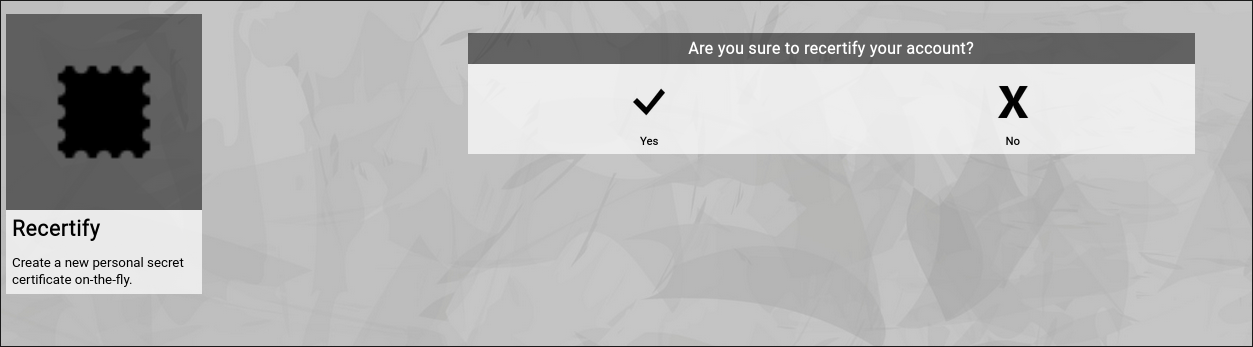
(Zingoolarity recertify screen)
This does not influence or invalidate your current session with Zingoolarity; the new certificate is exchanged on-the-fly in the background.
If you are using Zingoolarity from different computing devices at the same time, the sessions on the other devices will be invalidated immediately and you need to re-login again with the new personal secret certificate. |
| Logoff from your User Account |
|---|
Logoff from your User Account
This option is only available if you already logged in with a valid user account.
Select the Logoff option from the Zingoolarity home page or the main menu.
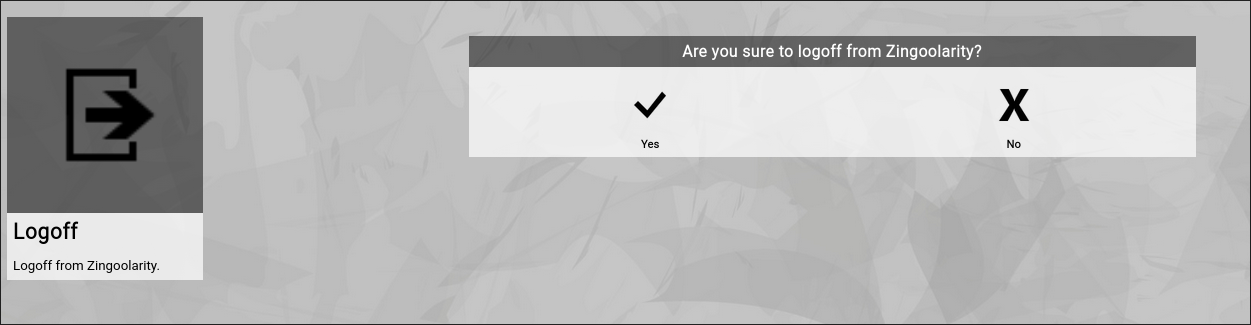
(Zingoolarity logoff screen)
This allows you to logoff from your user account in the current browser session.
To re-login, you need a previously recovered email with your personal secret certificate. |
|





