Introduction
Installation
Start
General
Myself
TOPICS
Main
Configuration
System
Websites
Update
Downloads
Copyright+License
Zingoolarity Homepage Main
Inhaltsverzeichnis
Using the Topic Browser
Using the Action Browser
Using the Team Browser
Using the Link Browser
Using the Usage Browser
Using the Match Browser
The Capability Map

Main

The Main functions of Zingoolarity contain the topic-related functions (which are explained in the previous chapter called TOPICS).

In addition, they contain topic-related browsers, which are described in this chapter.


Using the Topic Browser

Using the Topic Browser

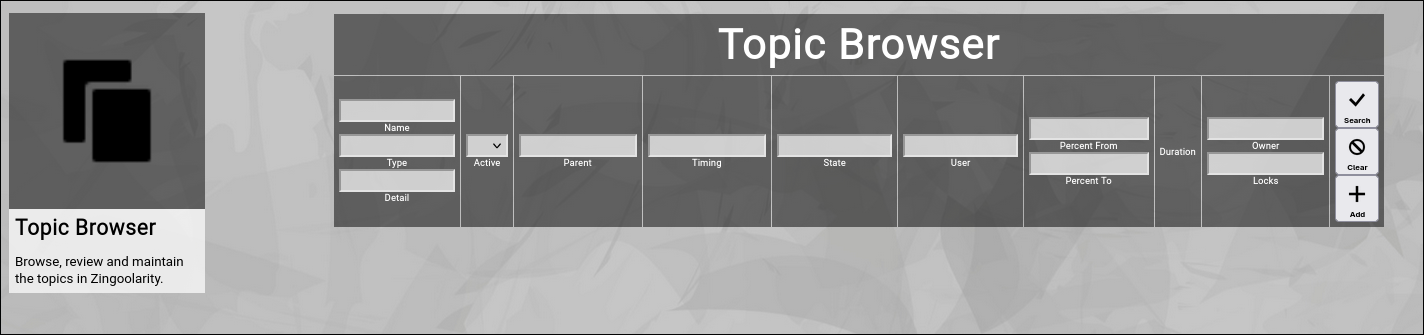
The topic browser allows users to browse and view all the topics in your Zingoolarity instance in list format.

It can also be seen as an "extended search”, as it allows more distinct topic attributes to be used as filters.

To invoke the topic browser, select "Topics” from either the main menu or from the home page:


(Zingoolarity Topic Browser)

Searching & Filtering for Topics

The topic browser allows you to search and filter for the following topic attributes:

  • Name
    Enter part of a topic name.
  • Type
    Enter part of a topic type name (e.g. "epic”).
  • Detail
    Enter a phrase occuring in the details of a topic.
  • Active
    Select whether you want to see all topics, only active topics or only inactive topics.
  • Parent
    Enter part of the name of a parent topic.
  • Timing
    Enter part of a timing name of a topic (e.g. "2024”).
  • State
    Enter part of a topic state name (e.g. "progressing”).
  • User
    Enter part of an assigned user name of a topic (who works on the topic).
  • Percent From / To
    Enter any percentage range to filter for topics with completion percentage in-between.
    You can also specify only a starting or an ending percentage alone.
  • Owner
    Enter part of an owner name of a topic (who created the topic).
  • Locks
    Enter part of a security locks configuration (e.g. "trinity.w”).

Click the "Search” button to perform the search or click the "Clear” button to reset the already entered search criteria.

Exporting Topics

If you are an administrative user, you can export the currently filtered list of topics in ZML format to a local file.

Click on the "Export” button to perform the export.

A file named "export_topic.zml” or "export_topic.csv" (depending on the export mode settings in the settings screen) will be created in your local "Downloads” directory.

Adding a New Topic

To add a new topic, click the "Add” button.

Note that using the "Add” button in the topic browser will always create new topics located below the top-most "Home” topic.

Please use to the "Add” buttons in the different view modes to create topics in other contexts.

The attributes available in a topic have already been explained in a previous chapter in this getting started guide.

Please refer to the "Editing a Topic” chapter for more details.

At the bottom of the screen, a couple of buttons are available:

  • The "Save” button will just save your changes (without leaving the editor screen).
  • The "Save+Back” button will do the same but return to the previous screen.
  • The "Cancel” button will just return to the previous screen (without saving).
  • The "Delete” button will request confirmation, will delete the record and then will return to the previous screen.
  • Note: Deleting a topic is only possible, if the topic is not yet used somewhere in Zingoolarity already; if this is the case, you will see an appropriate error message.
  • The "Log” button will show a historical transaction log of the current record (for auditing purposes).

Editing an Existing Topic

To edit an existing topic, click the "Edit” button next to the topic in the list shown in the topic browser after searching.

Focusing on a Topic or a Parent Topic

You can focus on a topic or a parent topic (and invoke the Contextchart view) by clicking on the name of a topic or the name of a parent topic in the list shown in the topic browser after searching.

Viewing the Assigned User of a Topic

You can view the details of an assigned user of a topic by clicking on the name of a user in the list shown in the topic browser after searching.

Using the Action Browser

Using the Action Browser

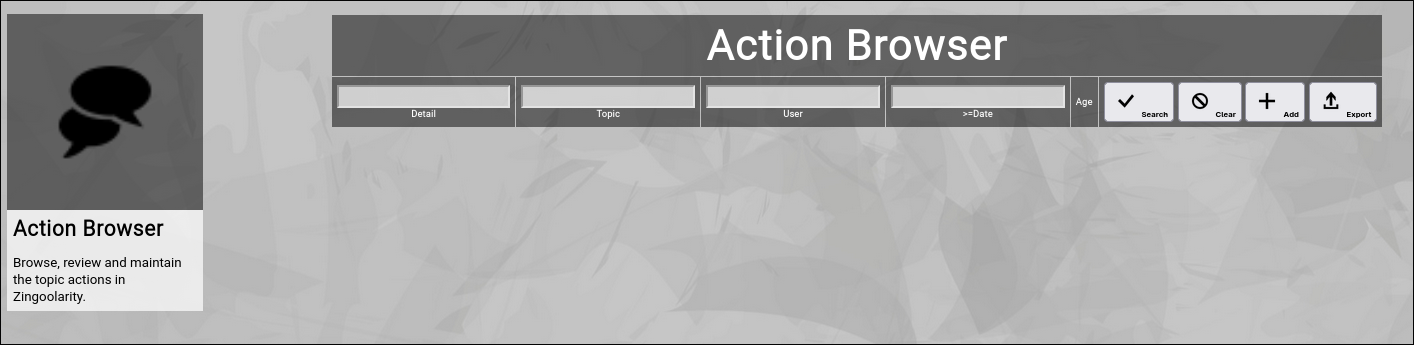
The action browser allows users to browse and view all the actions over all the topics in your Zingoolarity instance in list format.

To invoke the action browser, select "Actions” from either the main menu or from the home page:


(Zingoolarity Action Browser)

Searching & Filtering for Actions

The action browser allows you to search and filter for the following action attributes:

  • Detail
    Enter a phrase occuring in the details of an action.
  • Topic
    Enter part of the topic name.
  • User
    Enter part of a user name of an action (who created the action).
  • >=Date
    Enter a starting date, from which onwards you want to filter the actions.

Click the "Search” button to perform the search or click the "Clear” button to reset the already entered search criteria.

Exporting Actions

If you are an administrative user, you can export the currently filtered list of actions in ZML format to a local file.

Click on the "Export” button to perform the export.

A file named "export_action.zml” or "export_action.csv" (depending on the export mode settings in the settings screen) will be created in your local "Downloads” directory.

Adding a New Action

To add a new action, click the "Add” button.

Note that using the "Add” button in the action browser will always create new actions for the top-most "Home” topic.

Please use the "Topic Actions” function in the context of a single topic to add actions to a specific topic.

The attributes available in an action have already been explained in a previous chapter in this getting started guide.

Please refer to the "Working with Topic Actions” chapter for more details.

At the bottom of the screen, a couple of buttons are available:

  • The "Save” button will just save your changes (without leaving the editor screen).
  • The "Save+Back” button will do the same but return to the previous screen.
  • The "Cancel” button will just return to the previous screen (without saving).
  • The "Delete” button will request confirmation, will delete the record and then will return to the previous screen.
    Note: Deleting an action is only possible, if the action is not yet used somewhere in Zingoolarity already; if this is the case, you will see an appropriate error message.
  • The "Log” button will show a historical transaction log of the current record (for auditing purposes).

Editing an Existing Action

To edit an existing action, click the "Edit” button next to the action in the list shown in the action browser after searching.

Viewing Actions for a Topic

You can focus on the actions of a single topic by clicking on the name of a topic in the list shown in the action browser after searching.

Viewing the Author of an Action

You can view the details of an author of an action by clicking on the name of a user in the list shown in the action browser after searching.

Using the Team Browser

Using the Team Browser

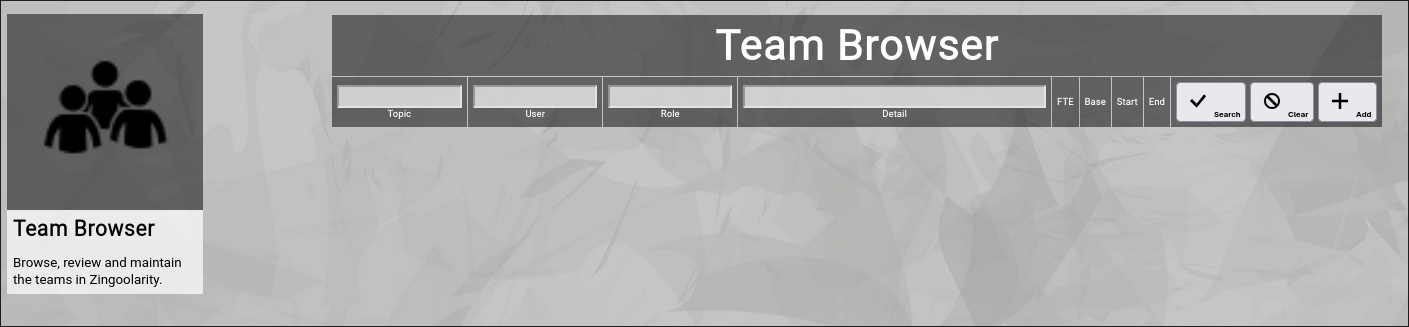
The team browser allows users to browse and view all the team members over all the topics in your Zingoolarity instance in list format.

To invoke the team browser, select "Teams” from either the main menu or from the home page:


(Zingoolarity Team Browser)

Searching & Filtering for Teams

The team browser allows you to search and filter for the following team attributes:

  • Topic
    Enter part of the topic name associated with the team.
  • User
    Enter part of a user name belonging to a team.
  • Role
    Enter part of a role name which a user has taken in the context of a team.
  • Detail
    Enter a phrase occuring in the details of a team membership.

Click the "Search” button to perform the search or click the "Clear” button to reset the already entered search criteria.

Exporting Teams

If you are an administrative user, you can export the currently filtered list of teams in ZML format to a local file.

Click on the "Export” button to perform the export.

A file named "export_team.zml” or "export_team.csv" (depending on the export mode settings in the settings screen) will be created in your local "Downloads” directory.

Adding a New Team

To add a new team member, click the "Add” button.

Note that using the "Add” button in the team browser will always create new team members for the top-most "Home” topic.

Please use the "Topic Team” function in the context of a single topic to add team members to a specific topic.

The attributes available in a team membership have already been explained in a previous chapter in this getting started guide.

Please refer to the "Building Teams” chapter for more details.

At the bottom of the screen, a couple of buttons are available:

  • The "Save” button will just save your changes (without leaving the editor screen).
  • The "Save+Back” button will do the same but return to the previous screen.
  • The "Cancel” button will just return to the previous screen (without saving).
  • The "Delete” button will request confirmation, will delete the record and then will return to the previous screen.
    Note: Deleting a team membership is only possible, if the team membership is not yet used somewhere in Zingoolarity already; if this is the case, you will see an appropriate error message.
  • The "Log” button will show a historical transaction log of the current record (for auditing purposes).

Editing an Existing Team Membership

To edit an existing team membership, click the "Edit” button next to the team membership in the list shown in the team browser after searching.

Viewing the Team for a Topic

You can focus on the team of a single topic by clicking on the name of a topic in the list shown in the team browser after searching.

Viewing the Member of a Team

You can view the details of a team member by clicking on the name of a user in the list shown in the team browser after searching.

Using the Link Browser

Using the Link Browser

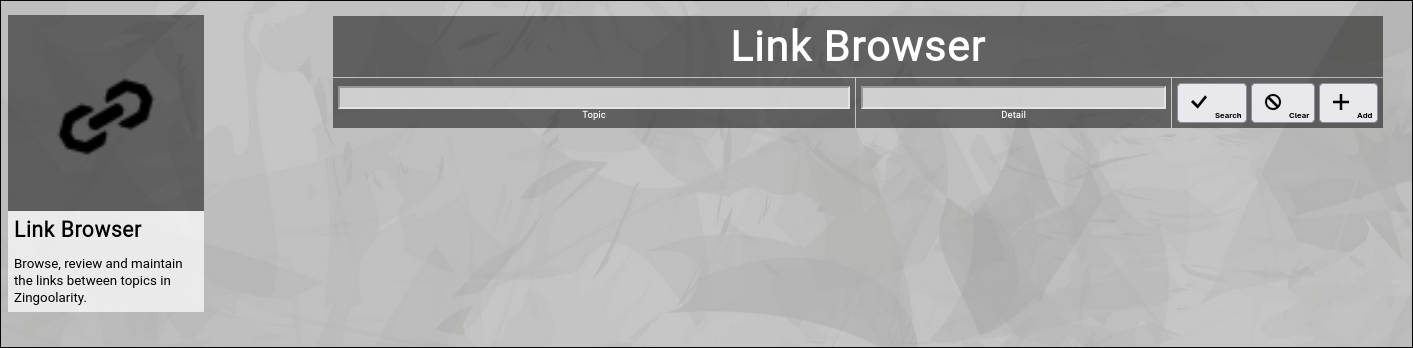
The link browser allows users to browse and view all the additional links between all the topics in your Zingoolarity instance in list format.

To invoke the link browser, select "Links” from either the main menu or from the home page:


(Zingoolarity Link Browser)

Searching & Filtering for Links

The link browser allows you to search and filter for the following link attributes:

  • Topic
    Enter part of the topic name associated with a link.
  • Detail
    Enter a phrase occuring in the details of a link.

Click the "Search” button to perform the search or click the "Clear” button to reset the already entered search criteria.

Exporting Links

If you are an administrative user, you can export the currently filtered list of links in ZML format to a local file.

Click on the "Export” button to perform the export.

A file named "export_link.txt” will be created in your local "Downloads” directory.

Adding a New Link

To add a new link, click the "Add” button.

Note that using the "Add” button in the link browser will always create new links for the top-most "Home” topic.

Please use to the "Topic Link” function in the context of a single topic to add links to a specific topic.

The attributes available in a link have already been explained in a previous chapter in this getting started guide.

Please refer to the "Creating Dependencies with Links” chapter for more details.

At the bottom of the screen, a couple of buttons are available:

  • The "Save” button will just save your changes (without leaving the editor screen).
  • The "Save+Back” button will do the same but return to the previous screen.
  • The "Cancel” button will just return to the previous screen (without saving).
  • The "Delete” button will request confirmation, will delete the record and then will return to the previous screen.
    Note: Deleting a link is only possible, if the link is not yet used somewhere in Zingoolarity already; if this is the case, you will see an appropriate error message.
  • The "Log” button will show a historical transaction log of the current record (for auditing purposes).

Editing an Existing Link

To edit an existing link, click the "Edit” button next to the link in the list shown in the link browser after searching.

Viewing the Topics which a Link connects

You can focus on the originating or on the targeting topic by clicking on the name of a topic in the list shown in the link browser after searching.

Using the Usage Browser

Using the Usage Browser

The usage browser allows users to browse and view all the usages (intersections of capabilities, applications and products) in your Zingoolarity instance in list format.

It can also be seen as an "extended search”, as it allows more distinct usage attributes to be used as filters.

To invoke the usage browser, select "Usages” from either the main menu or from the home page:
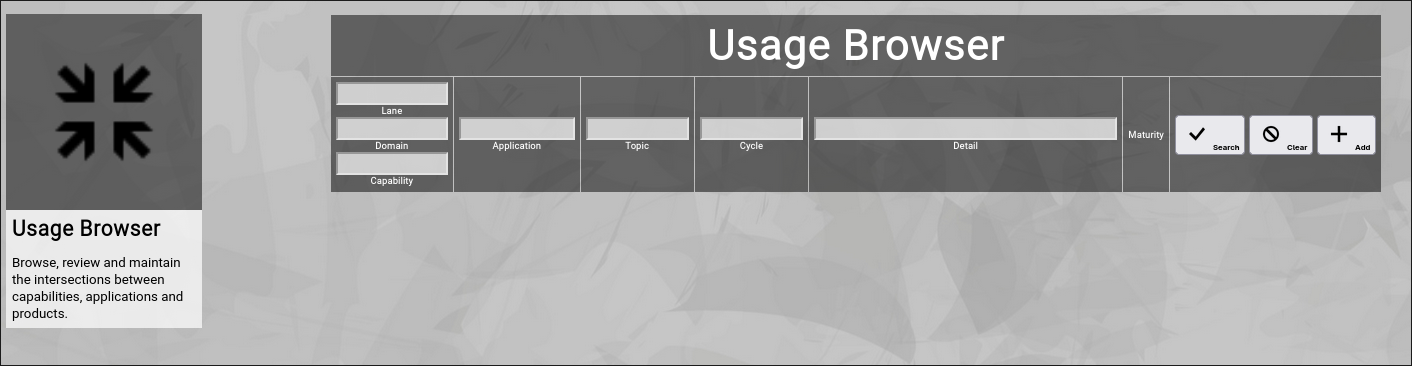

(Zingoolarity Usage Browser)

Searching & Filtering for Usages

The usage browser allows you to search and filter for the following usage attributes:

  • Lane
    Enter part of the intersected lane name.
  • Domain
    Enter part of the intersected domain name.
  • Capability
    Enter part of the intersected capability name.
  • Application
    Enter part of the intersected application name.
  • Topic
    Enter part of the intersected topic (lane, domain, product) name.
  • Cycle
    Enter part of a usage cycle name (e.g. "target”).
  • Detail
    Enter part of the detailed description of the usage.

Click the "Search” button to perform the search or click the "Clear” button to reset the already entered search criteria.

Exporting Usages

If you are an administrative user, you can export the currently filtered list of usages in ZML format to a local file.

Click on the "Export” button to perform the export.

A file named "export_usage.zml” or "export_usage.csv" (depending on the export mode settings in the settings screen) will be created in your local "Downloads” directory.

Adding a New Usage

To add a new usage, click the "Add” button.

Note that using the "Add” button in the usage browser will always create new usages located below the top-most "Home” usage.

Please use to the "Add” buttons in the different view modes to create usages in other contexts.

The attributes available in a usage have already been explained in a previous chapter in this getting started guide.

Please refer to the "Editing a Usage” chapter for more details.

At the bottom of the screen, a couple of buttons are available:

  • The "Save” button will just save your changes (without leaving the editor screen).
  • The "Save+Back” button will do the same but return to the previous screen.
  • The "Cancel” button will just return to the previous screen (without saving).
  • The "Delete” button will request confirmation, will delete the record and then will return to the previous screen.
  • Note: Deleting a usage is only possible, if the usage is not yet used somewhere in Zingoolarity already; if this is the case, you will see an appropriate error message.
  • The "Log” button will show a historical transaction log of the current record (for auditing purposes).

Editing an Existing Usage

To edit an existing usage, click the "Edit” button next to the usage in the list shown in the usage browser after searching.

Viewing a Capability of a Usage

You can view the details of a capability of a usage by clicking on the capability name.

Viewing an Application of a Usage

You can view the details of an application of a usage by clicking on the application name.

Viewing a Topic of a Usage

You can view the details of a topic (lane, domain, product) ofa usage by clicking on the topic name.

Viewing a Cycle of a Usage

You can view the details of a cycle of a usage by clicking on the cycle name.

Using the Match Browser

Using the Match Browser

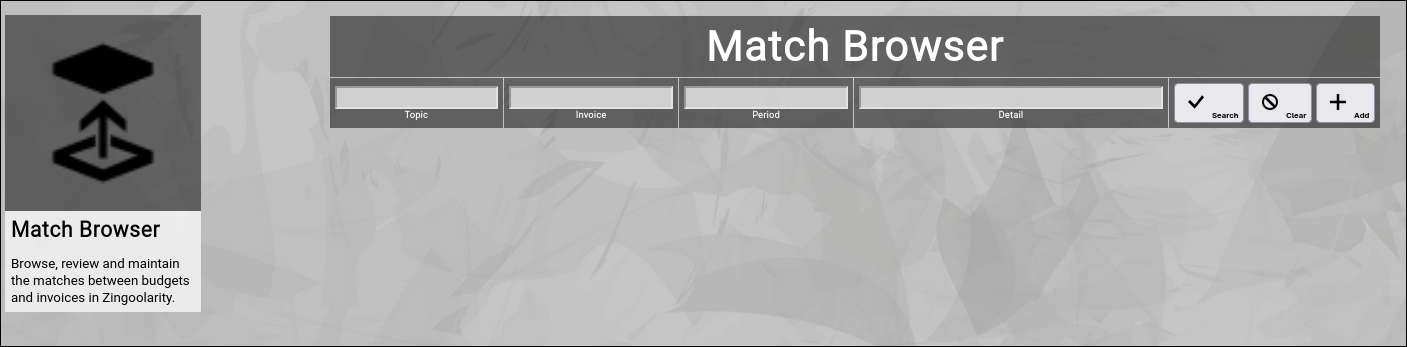
The match browser allows users to browse and view all the invoice matches over all the topics in your Zingoolarity instance in list format.

To invoke the match browser, select "Matches” from either the main menu or from the home page:


(Zingoolarity Match Browser)

Searching & Filtering for Matches

The match browser allows you to search and filter for the following match attributes:

  • Topic
    Enter part of the topic name (of a topic used as a budget).
  • Invoice
    Enter part of the invoice name (of a topic used as an invoice).
  • Period
    Enter part of a period name of a match.
  • Detail
    Enter a phrase occuring in the details of a match.

Click the "Search” button to perform the search or click the "Clear” button to reset the already entered search criteria.

Exporting Matches

If you are an administrative user, you can export the currently filtered list of matches in ZML format to a local file.

Click on the "Export” button to perform the export.

A file named "export_match.zml” or "export_match.csv" (depending on the export mode settings in the settings screen) will be created in your local "Downloads” directory.

Adding a New Match

To add a new match, click the "Add” button.

Note that using the "Add” button in the match browser will always create new matches for the top-most "Home” topic.

Please use the "Topic Matches” function in the context of a single topic to add matches to a specific topic (representing an invoice).

The attributes available in a match have already been explained in a previous chapter in this getting started guide.

Please refer to the "Matching an Invoice to a Budget” chapter for more details.

At the bottom of the screen, a couple of buttons are available:

  • The "Save” button will just save your changes (without leaving the editor screen).
  • The "Save+Back” button will do the same but return to the previous screen.
  • The "Cancel” button will just return to the previous screen (without saving).
  • The "Delete” button will request confirmation, will delete the record and then will return to the previous screen.
    Note: Deleting a match is only possible, if the match is not yet used somewhere in Zingoolarity already; if this is the case, you will see an appropriate error message.
  • The "Log” button will show a historical transaction log of the current record (for auditing purposes).

Editing an Existing Match

To edit an existing match, click the "Edit” button next to the match in the list shown in the match browser after searching.

Viewing a Budget or an Invoice

You can focus on the topic representing a budget or the topic representing an invoice by clicking on the name of a topic or an invoice in the list shown in the match browser after searching.

The Capability Map

The Capability Map

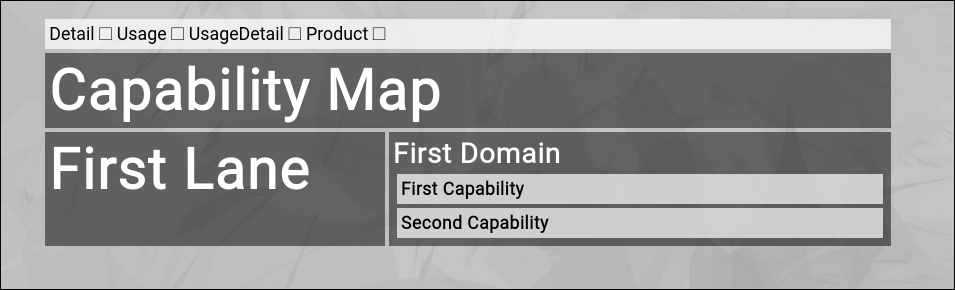
The capability map is a graphical map, which is automatically generated from your structured business capability information.

The overall structure can be maintained with the help of the Capability Browser (see for more details).

You can invoke the capability map from the home page or the main menu by clicking on "Capability Map":


(The Zingoolarity capability map filled with demo data)

Customizing your View

On top of the map you can find 5 toggles:

  • Detail
    The "Detail" toggle activates or deactivates the display of the detailed description of every item in the map.
  • Usage
    The "Usage" toggle activates or deactives the display of the usage intersections of capabilities, applications and topics (topics represent parts of your product map).
    Activating this will generates a color-coded view based on the cycles, which is the equivalent of a target architecture map.
  • Usage Detail
    The "Usage Detail" toggle activates or deactives the display of the optional description of the usages.
    This is only visible if the "Usage" toggle is already active.
  • Product
    The "Product" toggle will add the product name to the usage view.
    This is only visible if the "Usage" toggle is already active.
  • Hilite
    The "Hilite" toggle resets all accumulated highlighting of applications in the map.
    To hilite an individual application, click the small checkbox in front of the application name anywhere on the map (this works only if you have activate "Usage Detail" first).
    All other usages of the same application will be marked with a rotating flashing marker, so that you can easily spot all the different capabilities on the map, for which the application is being used.