|
|---|
 |
 |
|---|
 |
|---|
 |
|---|
|
|
|---|
 | Zingoolarity Homepage | | Main | | Using the Team Browser |
| Using the Team Browser |
|---|
Using the Team BrowserThe team browser allows users to browse and view all the team members over all the topics in your Zingoolarity instance in list format. To invoke the team browser, select "Teams” from either the main menu or from the home page:
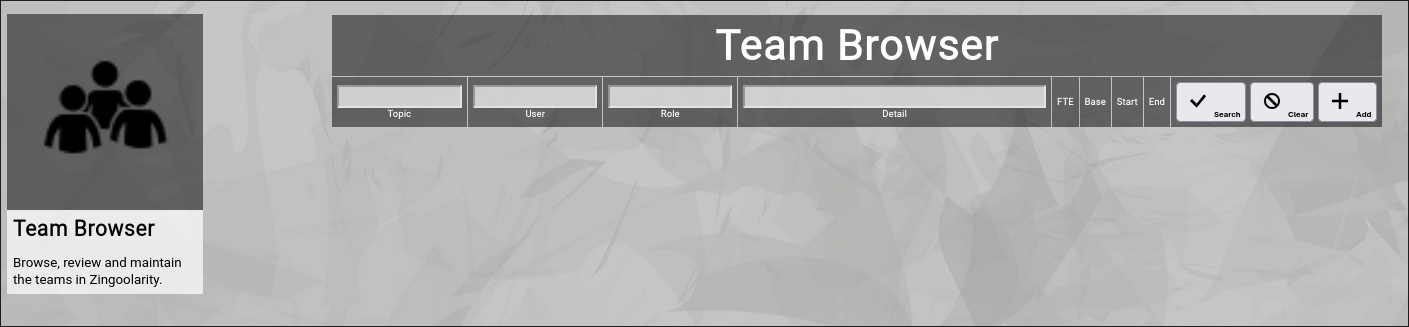
Searching & Filtering for TeamsThe team browser allows you to search and filter for the following team attributes:
Click the "Search” button to perform the search or click the "Clear” button to reset the already entered search criteria. Exporting TeamsIf you are an administrative user, you can export the currently filtered list of teams in ZML format to a local file. Click on the "Export” button to perform the export. A file named "export_team.zml” or "export_team.csv" (depending on the export mode settings in the settings screen) will be created in your local "Downloads” directory. Adding a New TeamTo add a new team member, click the "Add” button. Note that using the "Add” button in the team browser will always create new team members for the top-most "Home” topic. Please use the "Topic Team” function in the context of a single topic to add team members to a specific topic. The attributes available in a team membership have already been explained in a previous chapter in this getting started guide. Please refer to the "Building Teams” chapter for more details. At the bottom of the screen, a couple of buttons are available:
Editing an Existing Team MembershipTo edit an existing team membership, click the "Edit” button next to the team membership in the list shown in the team browser after searching. Viewing the Team for a TopicYou can focus on the team of a single topic by clicking on the name of a topic in the list shown in the team browser after searching. Viewing the Member of a TeamYou can view the details of a team member by clicking on the name of a user in the list shown in the team browser after searching. |