Securing a Topic
We already shortly touched the "Owner” and the "Locks” fields in the chapter about "Editing a Topic”.
These two fields together govern the access to the individual topic.
User Keys
Every user in Zingoolarity can possess a number of so-called "keys”.
Every key is a unique word.
The key field of a user record can contain a space-delimited list of 1..N keys.
Keys of a user can only be maintained by administrators of the Zingoolarity instance.
A valid example for a list of user keys may be for example:
all trinity
Topic Locks
Every topic has an "owner” field.
This field is initialized when the topic is newly created and is automatically set to the user who created the topic.
Every topic also has a "locks” field.
This field can hold a space-delimited list of combinations of a key and an access level, again delimited by a dot.
A valid example for a list of topic locks may be for example:
all.r trinity.w nightworx.a
General Access Rules
The owner of a topic always has full access to the topic.
Administrative users always have full access to all topics in the Zingoolarity instance.
Users with a key in their key list, which also appears in the lock list of a topic, have access to the topic at the specified level after the dot.
If a topic has an empty list of locks, only the owner of the topic and the administrators have (full) access to the topic.
If a user has an empty list of keys, the user has only access to his or her own topics (except he or she is an administrator).
Access Levels
The following hierarchical access levels are available:
| .r | Read | Topic can be read. |
| .a | Add | Topics below the topic can be added. |
| .w | Write | Topic can be written. |
| .s | Super | Full access to the topic (same as the owner of the topic). |
Securing Topics below the Current Topic
By default, access security can be set by editing the "Locks” field of a topic.
This field can only be edited, if you own the topic or you have ".s” (super) level access to the topic.
Furthermore, it only affects one single topic (the one which you are currently editing).
If you want to apply the security setting to all topics below the current one, you can click the "Secure” button.
This will copy the "Owner” field and the "Locks” field to all topics below.
Note that this will only work, if you are the owner (or have ".s” (super) access) to all the topics below.
This is for example helpful, if you have a roadmap containing multiple levels of topics representing the activities and milestones and you want to make sure that there is a uniform access security setting to all information available in the roadmap.
Much like the "Delete” function, the "Secure” function requires you to confirm the operation before it is executed:
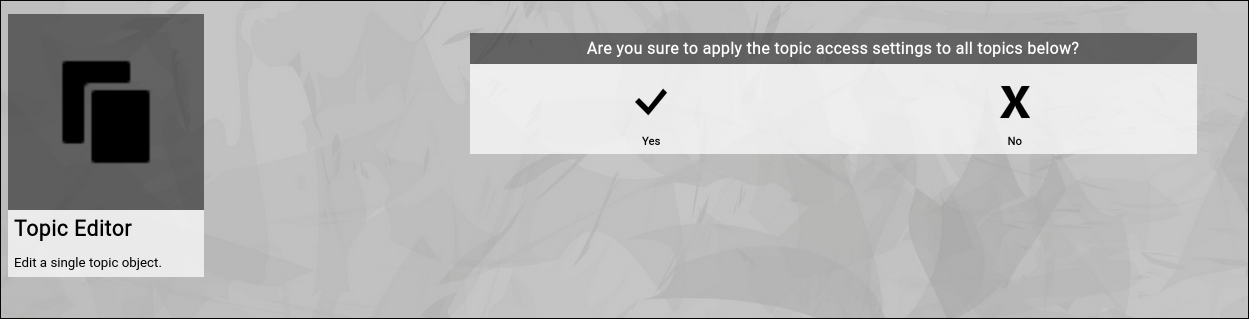
(Confirmation dialog of the Zingoolarity secure screen)
| 




