Using the State Browser
The state browser allows normal users to browse and view the available topic states in your Zingoolarity instance and allows administrative users to maintain these (create, update and delete).
To invoke the state browser, select States from either the main menu or from the home page:
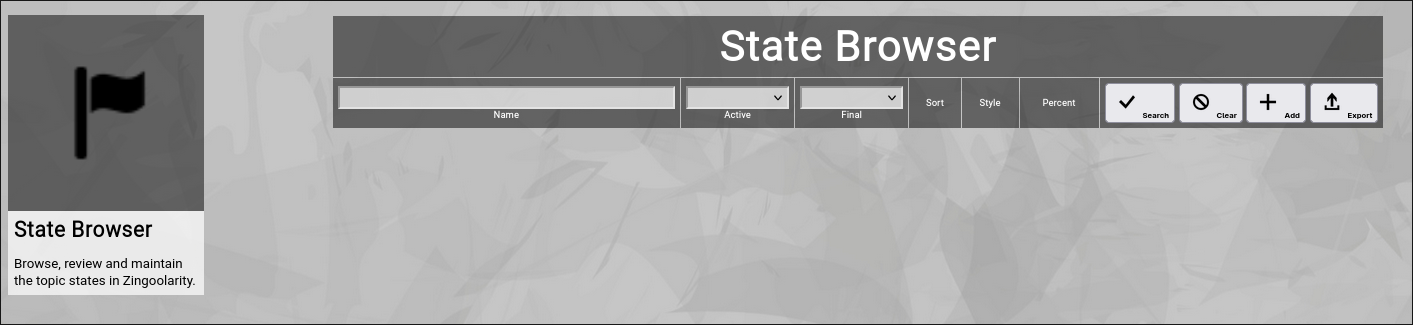
(Zingoolarity state browser)
Searching & Filtering for States
The state browser allows you to search and filter for the following state attributes:
- Name
Enter part of a state name.
- Active
Select whether you want to see all states, only active states or only inactive states.
- Final
Select whether you want to see all states, only final states or only progressional states.
Click the Search button to perform the search or click the Clear button to reset the already entered search criteria.
Exporting States
If you are an administrative user, you can export the currently filtered list of states in ZML format to a local file.
Click on the Export button to perform the export.
A file named export_state.txt will be created in your local Downloads directory.
Adding a New State
To add a new state, click the Add button.
The new state editor screen will appear:
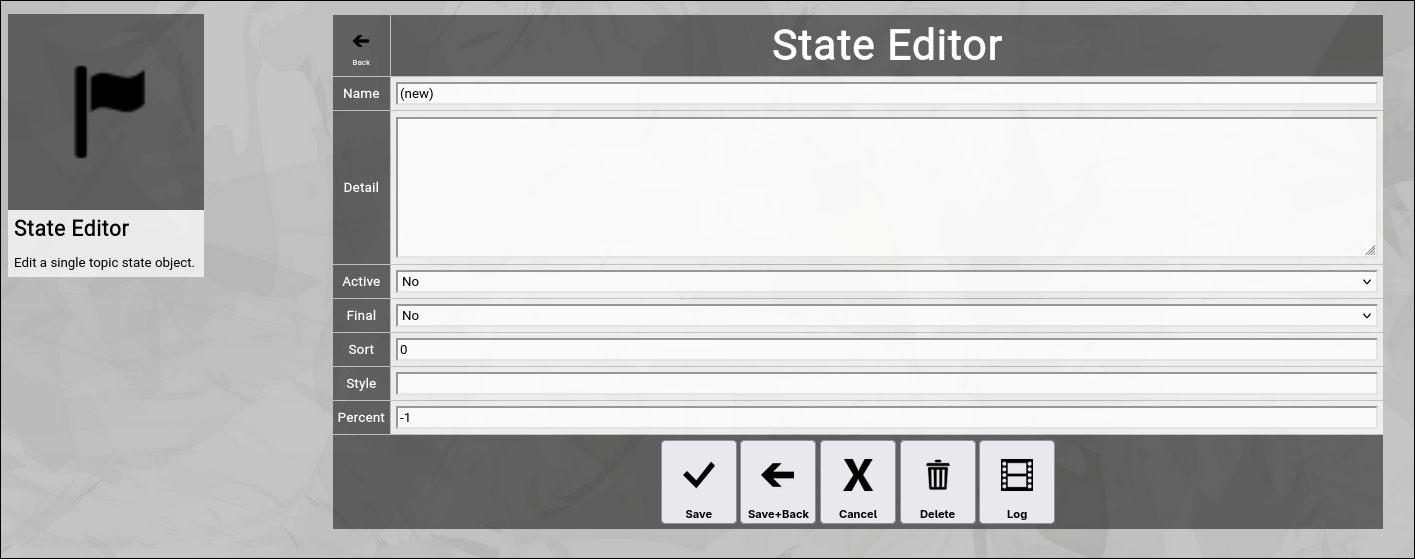
(Zingoolarity state editor screen)
Let us have a look at the different available attributes of a state:
- Name
The Name of a state represents a short and easy-to-understand label for the state.
- Detail
The optional Detail of a state is a full text description, optionally formatted in HTML.
You can enter HTML tags directly (e.g. if you want to underline something in the text, you can include it in tags).
- Active
The Active toggle of a state can be used to disable (or enable) a state.
Disabled states are not available in the various views or drop-down boxes of Zingoolarity.
Setting a state to inactive can be used as some kind of soft delete.
- Final
The Final toggle of a state designates that a state represents completion.
Completional states are for example done or canceled.
The opposite of the completional state is the progressional state.
A progressional state is for example running.
- Sort
The Sort of a state is a numeric value which directly influences the sort order of states in the different views of Zingoolarity.
This order is honored for example by the state drop-down boxes and by the Kanbanboard view.
- Style
The Style of a state is an optional HTML style definition, which allows you to color-highlight your states.
For example, if you enter background-color:#000000;color:#ff0000; here, you will get the state in red color on black background.
- Percent
The optional Percent of a state defines, whether a state change of a topic will automatically set the completion percentage (or not).
The default is -1 and means that no change will take place.
Selecting a percentage will automatically set this percentage when you select a new state for a topic.
A typical example is the done state; it automatically sets 100 as the percentage.
At the bottom of the screen, a couple of buttons are available:
The Save button will just save your changes (without leaving the editor screen).
The Save+Back button will do the same but return to the previous screen.
The Cancel button will just return to the previous screen (without saving).
The Delete button will request confirmation, will delete the record and then will return to the previous screen.
Note: Deleting a state is only possible, if the state is not yet used somewhere in Zingoolarity already; if this is the case, you will see an appropriate error message.
The Log button will show a historical transaction log of the current record (for auditing purposes).
Editing an Existing State
To edit an existing state, click the Edit button next to the state in the list shown in the state browser after searching. | 




