Looking at One Single Topic
Next, let us have a look at one single topic, which is shown on the map:

(One Zingoolarity topic rendered on the map)
You see a "card stack" icon (or "yellow sticky” icon, depending on the iconset selected) left of the name of your topic.
This is the generic icon for a topic.
If your topic contains an attachment which is a picture (in .jpg, .png or .gif format), the attached picture will be rendered instead as a small icon.
To the right of the name you see 3 clickable buttons:
- The "Edit” button.
Clicking this will invoke the "Edit" screen as already explained above.
- The "Cut” button.
Clicking this allows you to cut the topic to your personal clipboard.
More details will be explained further down in this getting started guide.
Note that this button is only visible if you have "Write” access to the topic.
- The "Open” / "Close” button.
The "arrow up” icon indicates, that the topic is currently closed.
If you click this button, it will change to the "arrow down” icon (which means that the topic is currently opened) and the topics below this topic (if any) are also rendered.
Clicking the button again will return to the "closed” state.
Note that this button is only visible if you have "Write” access to the topic.
If a topic is closed and topics exist below this topic, the number of topics is rendered in red next to the topic name.
(One Zingoolarity topic on the map in "closed” state with 2 topics below)
If you now click on the blue arrow, the screen will change to something like this:
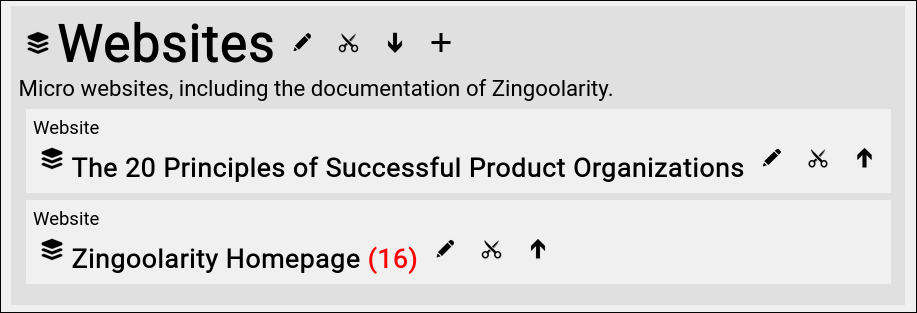
(One Zingoolarity topic on the map in "opened” state with 2 topics below)
The font size of the opened topic is much bigger now.
And the contained topics are rendered below.
This behavior actually works anywhere on the map and multiple levels deep.
You will also notice that an additional "Add” button appears next to the opened topic.
This allows you to directly add new topics below without focusing on the topic first. | 




