|
|---|
 |
 |
|---|
 |
|---|
 |
|---|
|
|
|---|
 | Zingoolarity Homepage | | TOPICS | | Adding new Topics below the currently focused Topic |
| Adding new Topics below the currently focused Topic |
|---|
Adding new Topics below the currently focused TopicNow we will start entering the topics below the "Home" topic to achieve the state which was shown in the example above. We click the "Add" button in the breadcrumb and we will see the same topic editor screen which we already encountered while editing the "Home" topic, this time showing a newly created topic. Now we update one field again (and click the "Save+Back" button afterwards):
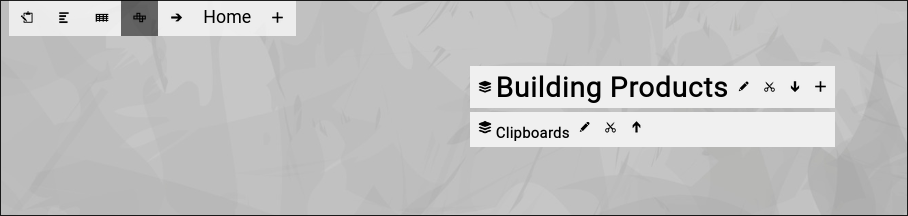
Now you will see the following screen:
Next we click the "small arrow up" next to the new topic.
The "small arrow up" has turned into a "small arrow down" and the name of the topic grew bigger (both signalling that the topic is now "open"). Next we click on the "Add" button next to the just opened item to add a new topic below this topic. We update three fields again (and click the "Save+Back" button afterwards):
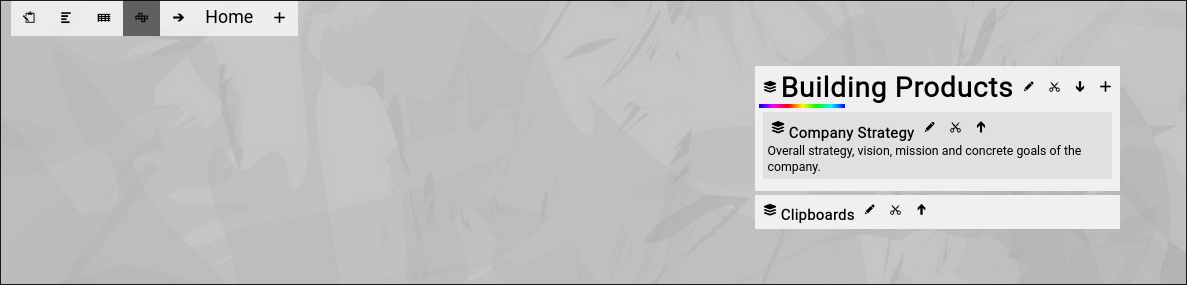
Now you will see the following screen:
You have just added the new topic below the "Building Products" topic. By the way, notice the animated "rainbow bar" next to the topic you just edited. This is an optical indicator of your "recent context" and allows you to easily focus again on where you left off. This is especially important, if you are facing a large map (which has many topics on it and needs scrolling in the browser). Note that your browser will also automatically scroll to the topic with the rainbow bar, if your map is larger than your screen and needs scrolling. Now have a look again at our example from the beginning:
Try to add the missing topics topic-by-topic on your own. This will finally create the state which we used as an example. Congratulations! You now already know the basics of adding topics to your contextchart. |