Using the User Browser
The user browser allows normal users to browse and view the available people in your Zingoolarity instance and allows administrative users to maintain people (create, update and delete).
To invoke the user browser, select Users from either the main menu or from the home page:
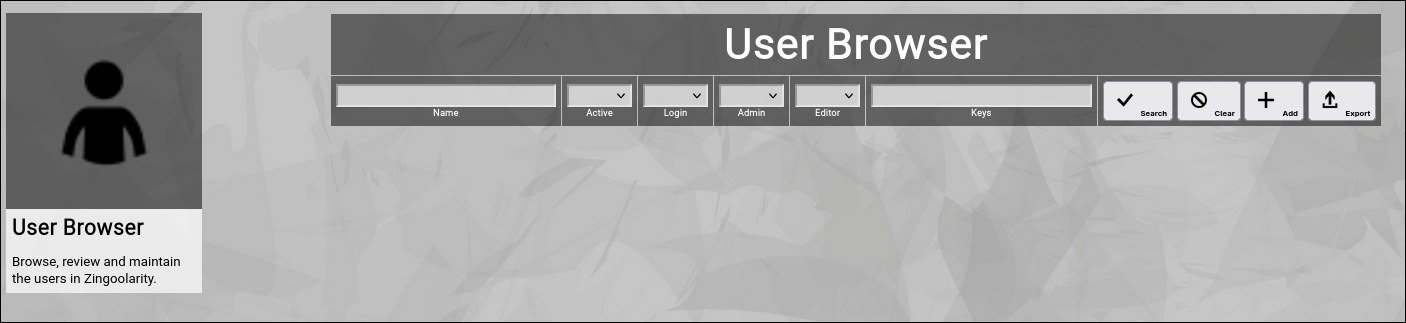
(Zingoolarity user browser)
Searching & Filtering for Users
The user browser allows you to search and filter for the following user attributes:
- Name
Enter part of a user name.
- Active
Select whether you want to see all users, only active users or only inactive users.
- Admin
Select whether you want to see all users, only administrative users or only non-administrative users.
- Editor
Select whether you want to see all users, only editing users or only read-only users.
- Keys
Enter part of the keys of a user.
Click the Search button to perform the search or click the Clear button to reset the already entered search criteria.
Exporting Users
If you are an administrative user, you can export the currently filtered list of users in ZML or CSV format to a local file.
The preferred export format can be selected in the settings screen (in the upper right corner of the menu bar).
Click on the Export button to perform the export.
A file named export_user.zml or export_user.csv will be created in your local Downloads directory.
Note:
Be careful with such a file, because it also includes the secret personal certificates of the users.
Adding a New User
To add a new user, click the Add button.
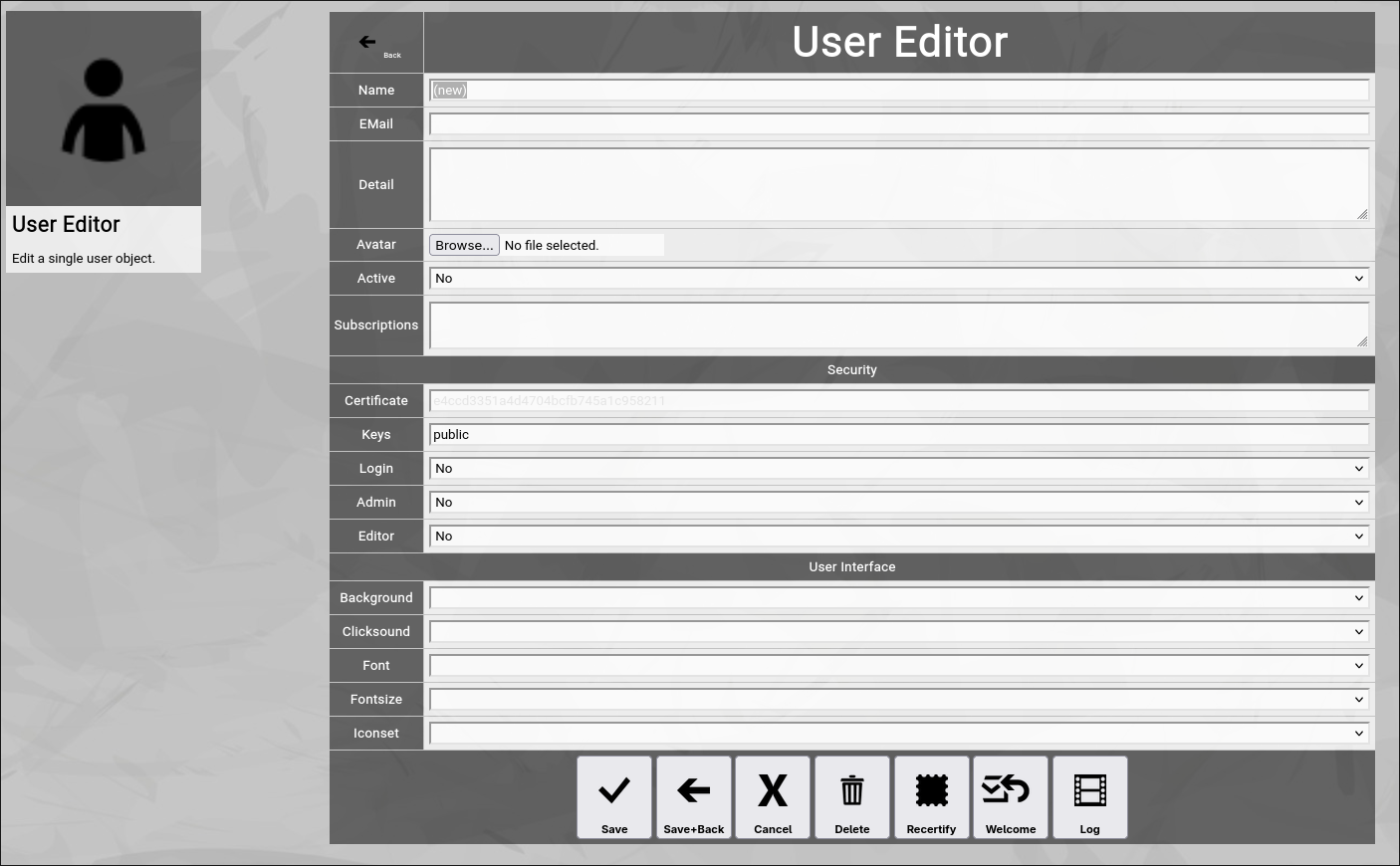
The new user editor screen will appear:
(Zingoolarity user editor screen)
Let us have a look at the different available attributes of a user:
- Name
The Name of a user represents its combination of first and last name.
It is always shown in the different views in Zingoolarity involving people.
This field can also be edited by the user him- or herself with the help of the profile screen.
- EMail
The optional EMail address of a user is required, if the person should be able to use Zingoolarity (the email address is used to recover the personal secret certificate to login).
For people who do not directly use Zingoolarity, the email address is optional and only has informational character.
This field can also be edited by the user him- or herself with the help of the profile screen.
- Detail
The optional Detail of a user is a full text description, optionally formatted in HTML.
You can enter HTML tags directly (e.g. if you want to underline something in the text, you can include it in tags).
This field can also be edited by the user him- or herself with the help of the profile screen.
- Avatar
The optional Avatar of a user allows you to upload an image file (.png, .jpg or .gif format) to the user, which will be shown as a kind of avatar in the different views in Zingoolarity.
You have to click on the Browse button to select an image file from a local directory.
This field can also be edited by the user him- or herself with the help of the profile screen.
- Active
The Active toggle of a user can be used to disable (or enable) a person.
Disabled users are shown in strike-out format in the user browser.
To be able to login to Zingoolarity, a user must be enabled.
Immediately after using the register screen (self registration), the new user record is disabled and needs approval by an administrator to be enabled.
Setting a user to inactive can be used as some kind of soft delete.
- Subscriptions
The Subscriptions of a user optionally contain a list of subscription toggles (enclosed in vertical bars, for example |dailynews|).
Subscriptions can be managed by the user him- or herself with the help of the profile screen.
- Home URL
The optional home URL allows you to set a custom URL, which will be used for the "Main" buttons in the home screen, in the menu and in the top level menu bar.
If the user subscribed to the simplified UI, this will also replace the link from the splash screen.
- SECURITY
- Certificate
The Certificate of a user is a secret 32 character string, which should only be shared with the user him- or herself, as it is the key which is needed to login to Zingoolarity.
Zingoolarity does not provide a standard username+password approach; only this secret key is needed to login and it can be obtained with the recover screen via email.
The certifcate cannot be edited and is visible only to administrators in ghosted (difficult to read) format, which enables mark, copy and paste.
- Keys
The Keys of a user contain a space-delimited list of security access keys, which are in the possession of the user.
For more information about the concept of ownership, keys and locks, please visit the Securing a Topic chapter further up in this getting-started-guide.
A reasonable default is the all key; it signals that topic content made available to all users of the Zingoolarity instance can be accessed.
- Login
The Login toggle of a user defines whether a user can login to Zingoolarity or not.
By default, users are only persons, who can be used to assign in teams and cannot work with Zingoolarity.
- Admin
The Admin toggle of a user defines whether a user is a normal user (disabled) or an administrative user (enabled).
Administrative users have full access to all topics (independent of topic ownership and locks configuration) and can perform full configuration of the Zingoolarity instance (including the maintenance of user accounts).
- Editor
The Editor toggle of a user defines whether a user can contribute and modify topic content (enabled) or can only view content (disabled).
This setting overrides any ownership or locks configuration; if a user is not an editor, he or she cannot add, edit or delete topic content at all.
- USER INTERFACE
- Background
The optional Background of a user allows you to select a different background image in Zingoolarity.
- Clicksound
The optional Clicksound of a user allows you to select a different clicking confirmation sound when making selections in Zingoolarity.
- Iconset
The optional Iconset of a user allows you to select a different set of icons in Zingoolarity.
Note: As Zingoolarity caches all icons in the browser (for performance reasons), this change is not immediate.
It may take up to 10 minutes for all new icons to appear (be patient).
- Font
The optional Font of a user allows you to select a different true type font in Zingoolarity.
- Fontsize
The optional Fontsize of a user allows you to select a different default font size in Zingoolarity.
The default is usually 10pt.
At the bottom of the screen, a couple of buttons are available:
- The Save button will just save your changes (without leaving the editor screen).
- The Save+Back button will do the same but return to the previous screen.
- The Cancel button will just return to the previous screen (without saving).
-
- The Delete button will request confirmation, will delete the record and then will return to the previous screen.
Note: Deleting a user is only possible, if the user is not yet used somewhere in Zingoolarity already; if this is the case, you will see an appropriate error message.
- The Log button will show a historical transaction log of the current record (for auditing purposes).
Recertifying a User (as an administrator)
If you are an administrator, you will see an additional button called Recertify button.
If you click this button, Zingoolarity will ask for confirmation and then will create a new random secret personal certificate for the user.
This will immediately invalidate any sessions of this user and the user has to re-login with the new certificate.
This is helpful if you suspect that a user account has been compromised and you want to re-establish proper security for the user in question.
Welcoming a User (as an administrator)
If you are an administrator, you will see an additional button called Welcome button.
If you click this button, Zingoolarity will ask for confirmation and then will send a welcome email to the email address of the user, including a personalized link to login (including the secret personal certificate).
This is helpful if you want to push-onboard the user either after self registration with the help of the register screen (and you just verified the user and set active=yes) or if you added the new user manually.
Editing an Existing User
To edit an existing user, click the Edit button next to the user in the list shown in the user browser after searching. |





