Using the Application Browser
The application browser allows normal users to browse and view the available applications in your Zingoolarity instance and allows administrative users to maintain these (create, update and delete).
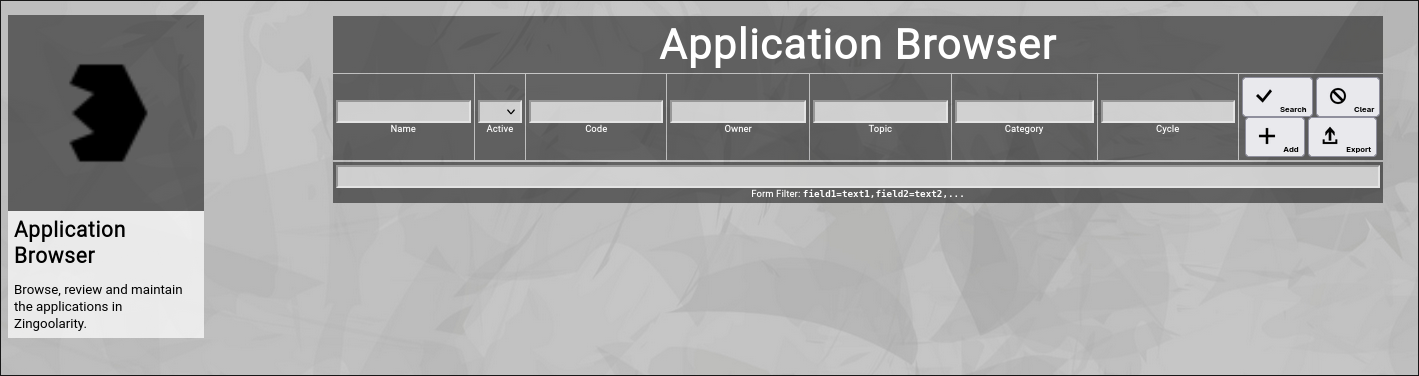
To invoke the application browser, select Applications from either the main menu or from the home page:
(Zingoolarity application browser)
Searching & Filtering for Applications
The app browser allows you to search and filter for the following application attributes:
- Name
Enter part of a application name.
- Active
Select whether you want to see all applications, only active applications or only inactive applications.
- Code
Enter part of a financial booking code (e.g. a SAP PSP code).
- Owner
Enter part of the owner name of the application (the application owner).
- Lane
Enter part of the lane name (2nd level above the topic). -
- Domain
Enter part of the domain name (1st level above the topic). -
- Topic
Enter part of an associated topic name (usually a lane, domain or a product in the product map of the company).
- Category
Enter part of a category name of the application.
- Cycle
Enter part of a cycle name of the application.
Click the Search button to perform the search or click the Clear button to reset the already entered search criteria.
Exporting Applications
If you are an administrative user, you can export the currently filtered list of applications in ZML format to a local file.
Click on the Export button to perform the export.
A file named export_app.zml or export_app.csv (depending on the export mode settings in the settings screen) will be created in your local Downloads directory.
Adding a New Application
To add a new application, click the Add button.
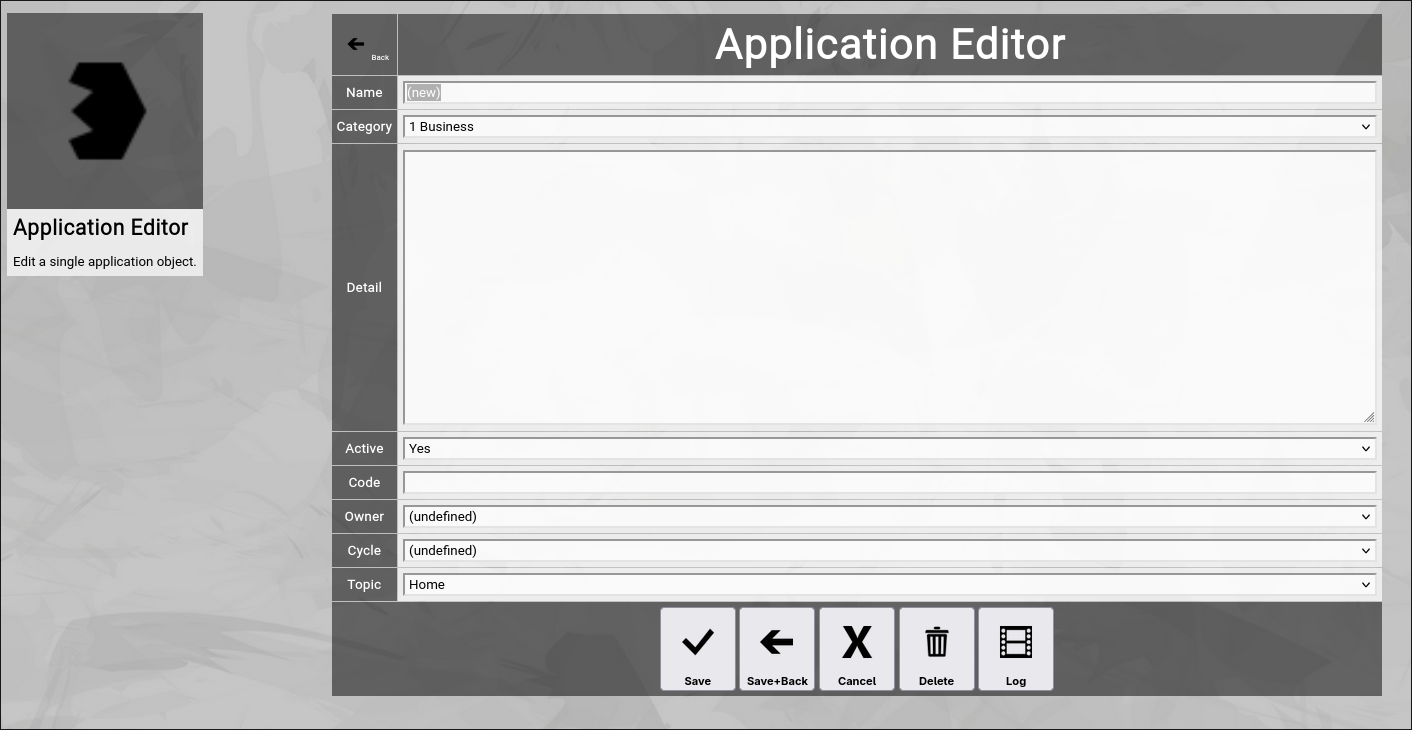
The new application editor screen will appear:
(Zingoolarity application editor screen)
Let us have a look at the different available attributes of an application:
- Name
The Name of an application represents a short and easy-to-understand label for the application.
- Category
The Category of an application allows you to partition your applications into logical segments.
Categories are pre-defined with the Category Browser (see next section).
- Detail
The optional Detail of an application is a full text description, optionally formatted in HTML.
You can enter HTML tags directly (e.g. if you want to underline something in the text, you can include it in tags).
In addition to that, you can use the embedded HTML WYSIWYG editor by activating it in the settings screen.
- Active
The Active toggle of an application can be used to disable (or enable) an application.
Disabled applications are not available in the various views or drop-down boxes of Zingoolarity.
Setting an application to inactive can be used as some kind of soft delete.
- Code
The Code can be used to associate a booking code to your application (e.g. the SAP PSP element).
It can be used to allocate costs on applications.
What has to be entered here is highly depending on your individual company.
- Owner
The Owner of an application is the subject matter expert in a product team, who is responsible for the lifecycle of the application.
He or she usually has deep knowledge about the application and takes care of commercial cost planning regarding the applications, among other things.
- Cycle
The Cycle of an application represents the stage of the lifecycle of the application.
It usually starts with Target (the application is part of the target architecture), then enters the Ramp Up (activities to prepare the application for production, customization, implementation, build-up of a product, etc), switches to Production and after a hopefully long time of productive usage finally goes into Deprecated and then into Decommissioned.
The available cycles are fetched from the Cycle Browser (also explained in this chapter).
- Topic
The Topic can be selected from a hierarchical list representing 3 levels of the product organization.
It starts to locate all topics of types which have the product map flag set to yes, then renders 2 level upwards (for easy selection in a similar appearance as the product map).
At the bottom of the screen, a couple of buttons are available:
- The Save button will just save your changes (without leaving the editor screen).
- The Save+Back button will do the same but return to the previous screen.
- The Cancel button will just return to the previous screen (without saving).
- The Delete button will request confirmation, will delete the record and then will return to the previous screen.
Note: Deleting an application is only possible, if the application is not yet used somewhere in Zingoolarity already; if this is the case, you will see an appropriate error message.
- The Log button will show a historical transaction log of the current record (for auditing purposes).
Editing an Existing Application
To edit an existing application, click the Edit button next to the application in the list shown in the app browser after searching. |





