|
|---|
 |
|---|
 |
 |
|---|
 |
|---|
|
|
|---|
 | Zingoolarity Homepage | | System | | Importing Data |
| Importing Data |
|---|
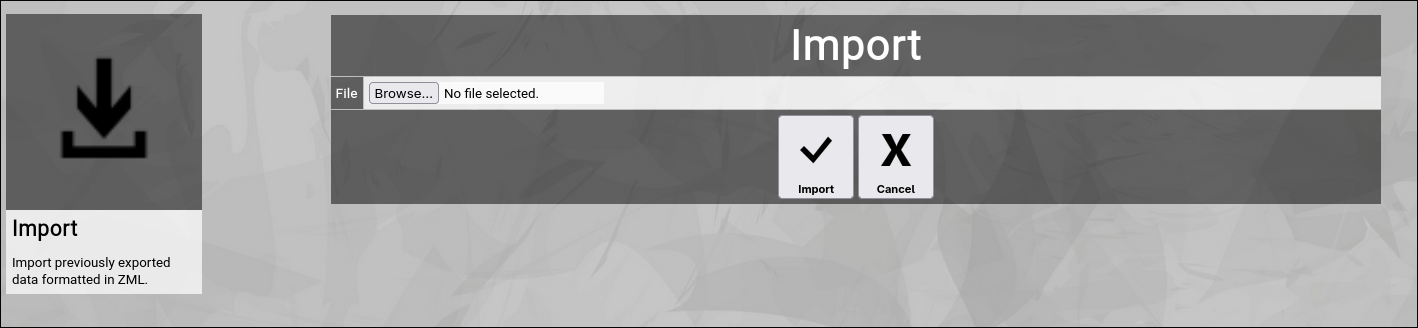
Importing DataThe Import function allows you to import a previously exported file containing any of the Zingoolarity data objects into your Zingoolarity instance. This function can also be used to move data from one instance to another. Import data is formatted in ZML. [role] [id]cpo[/id] [name]CPO[/name] [detail]The chief product owner steers the entire product portfolio.[/detail] [active]1[/active] [lead]1[/lead] [sort]0[/sort] [/role] [role] [id]po[/id] [name]PO[/name] [detail]The product owner is responsible for managing the product.[/detail] [active]1[/active] [lead]1[/lead] [sort]1[/sort] [/role] Export files can also be modified before importing them again, because they are plain text files. Such a file can contain a collection of different Zingoolarity object types. If an object with the same ID already exists in the database, Zingoolarity will skip the object during import (not performing an update). To initiate an import, select the Import function from the main menu or the home screen:
Click the Browse button and select a ZML file from your local storage. To start the import, click the Import button. The Cancel button will return to the home screen without performing the import. At the end of the import, Zingoolarity will show an overview of how many objects of a given type have been successfully imported or ignored (due to duplicates). Please note again, that exporting as well as importing requires administrative privileges. |