Creating Dependencies with Links
Zingoolarity allows you to build links between topics.
Again, this can represent many things, depending on what the involved topics represent:
- It can be a dependency between "epics” in different "products”.
- It can be a contextual relationship between different maps (for example the implementation of business capabilities by a product).
- ...
As all of this is dynamic (a topic can simply have a number of links to other topics), you can easily come up with other ideas.
You can switch to the links associated with a topic by clicking the "Links” button inside of the topic editor screen.
Initially the screen will be empty and will look something like this:
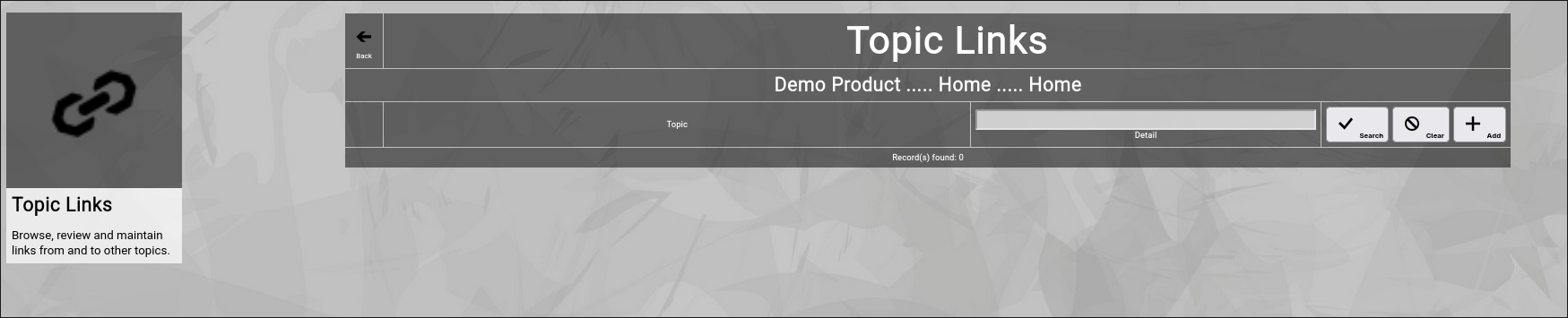
(Zingoolarity topic links screen)
You can now click the "Add” button to add a new link to the topic.
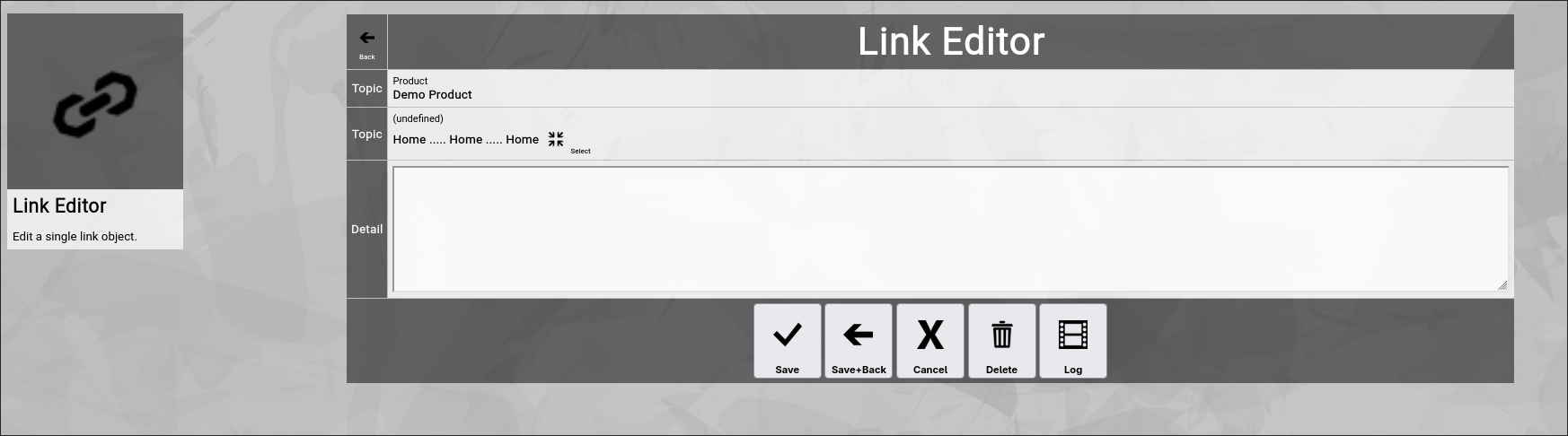
It will switch to the link editor screen:
(Zingoolarity link editor screen)
Let us have a quick look at the available fields:
- Topic
There are two topic fields:
The one from which the link originates and the one to which the link points.
The 2nd topic has a "Select” button next to it.
This allows you to select the target topic of the link (which is explained further down).
- Detail
The "Detail” of a link optionally further explains what the link is all about.
Much like the "Detail” of a topic it can manually contain HTML tags (for example a "
” tag to force a line break).
Much like in the topic editor screen, you have a selection of buttons to complete your input:
- The "Save” button will just save your link (without leaving the link editor screen).
- The "Save+Back” button will do the same but return to the previous screen.
- The "Cancel” button will just return to the previous screen (without saving).
- The "Delete” button will request confirmation, will delete the link and then will return to the previous screen.
- The "Log” button will show a historical transaction log of the current link (for auditing purposes).
Selecting the Target of a Link
Zingoolarity can be configured to show a drop-down box to simply select the target topic of a link "in one go”.
This only makes sense in small Zingoolarity instances, as your topics soon get into the hundreds and thousands, so a simple drop-down box is not practical.
Therefore by default, you have to click on the "Select” button to select a target topic.
This will show the following screen:

(Zingoolarity link target selection breadcrumb)
You basically see a breadcrumb to your current topic here.
You can now do multiple things:
- Click the "Cancel” button
This will abort the selection process and return to the previous screen.
- Click on one of the names of the topics above
This will navigate to the selected topic, for example click on "Demo Domain":

(Zingoolarity link target selection breadcrumb with two topics available)
You will now see the topics included in the "Demo Domain” topic.
- Click the "Select” button next to a topic
This will finally select the target topic and return to the previous screen.
For example clicking on "Demo Product 2” will result in this:
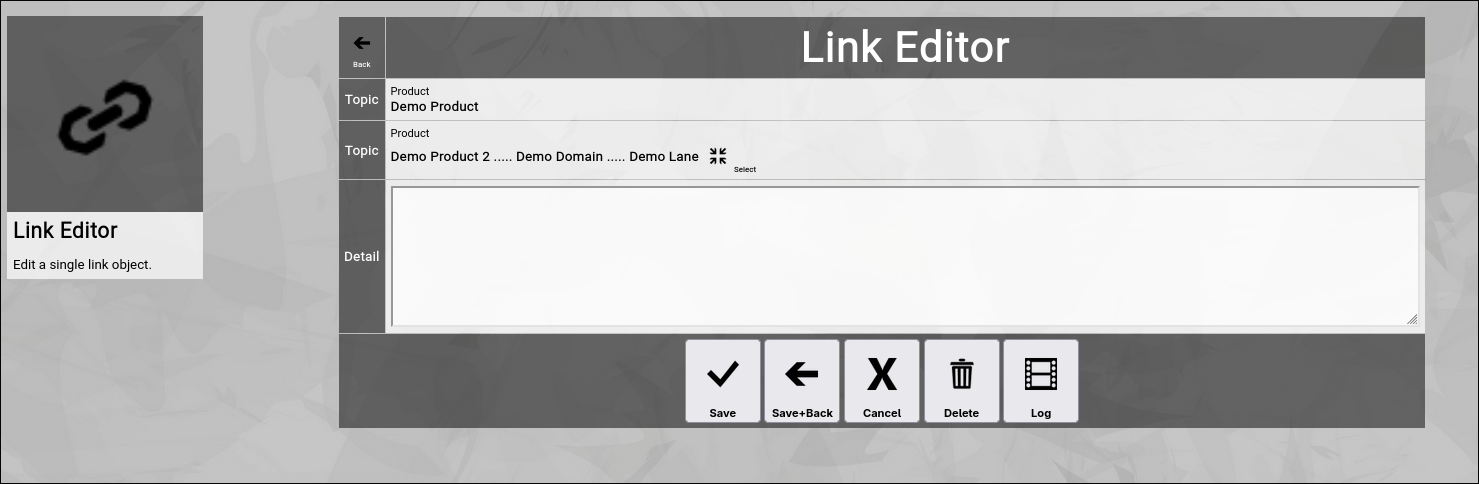
(Zingoolarity link editor screen with selected example target topic)
You can now modify the "Detail” field to your liking and click the "Save+Back” button or simply click the "Cancel” button, if you do not want to add anything in this screen.
The screen will return to the previous screen.
When you return to the previous screen, you will see the link which you just added in the list of the links:
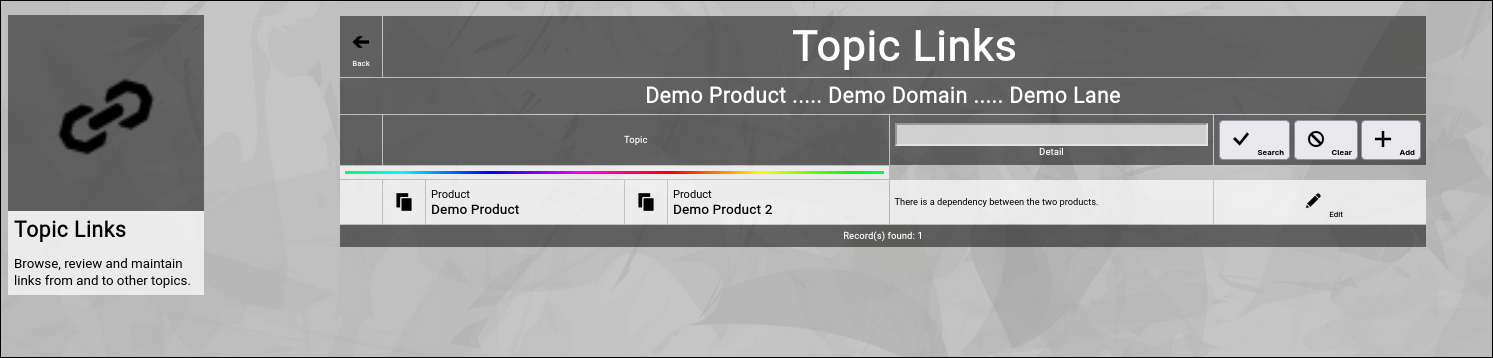
(Zingoolarity topic link screen with a recently added linked topic)
And you will also see the "rainbow bar” again, marking the link which you just edited.
This is helpful if there are already many links for the given topic.
The screen will scroll to the last edited link and will highlight it with the "rainbow bar”.
Editing an existing Link
You will also see the "Edit” button next to each and every link.
Clicking this button will allow you to switch to the link editor screen again to make some modifications.
Filtering the Topic Link
In general, the links are sorted in alphabetic order of the target topic.
If you already have many links added, it might be helpful to additionally filter.
You can enter:
- Part of a "Detail”
to search for a keyword in the details of the link.
You may click on the "Search” button to perform the filtering or click the "Clear” button to remove a currently active filter again.
Going Back to the Topic
You can click the "Back” button in the upper-left corner to return to the previous screen (in this case, the topic editor screen). | 




