Using the Timing Browser
The timing browser allows normal users to browse and view the available time dimensions for topics on roadmaps in your Zingoolarity instance and allows administrative users to maintain these (create, update and delete).
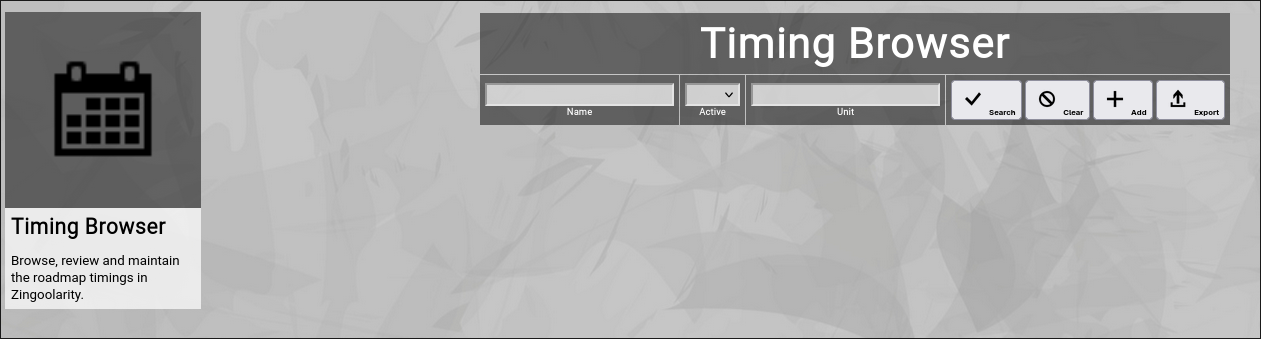
To invoke the timing browser, select Timings from either the main menu or from the home page:
(Zingoolarity timing browser)
Searching & Filtering for Timings
The timing browser allows you to search and filter for the following timing attributes:
- Name
Enter part of a timing name.
- Active
Select whether you want to see all timings, only active timings or only inactive timings.
- Unit
Enter a unit letter (for example m for months or w for weeks).
This makes sure that roadmap views only render timings of the same granularity.
Click the Search button to perform the search or click the Clear button to reset the already entered search criteria.
Exporting Timings
If you are an administrative user, you can export the currently filtered list of timings in ZML or CSV format to a local file.
Click on the Export button to perform the export.
A file named export_timing.zml or "export_timing.csv" will be created in your local Downloads directory.
Adding a New Timing
To add a new timing, click the Add button.
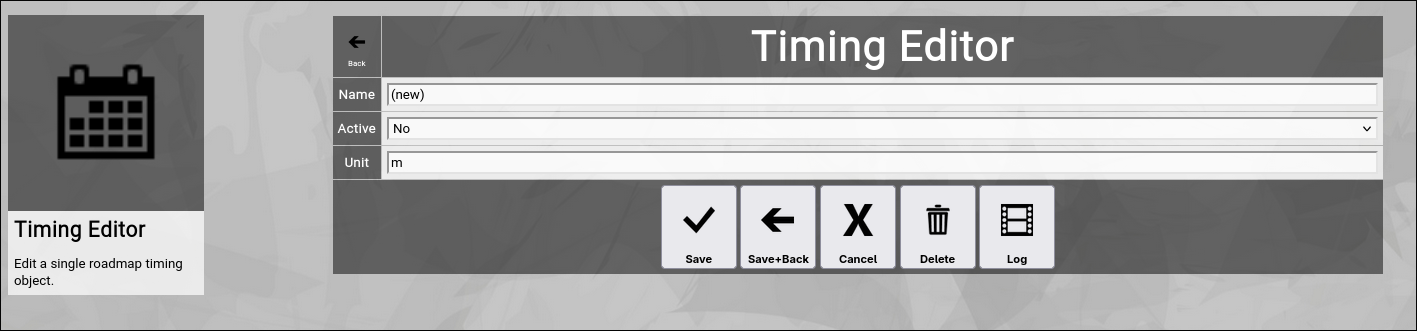
The new timing editor screen will appear:
(Zingoolarity timing editor screen)
Let us have a look at the different available attributes of a timing:
- Name
The Name of a timing represents a short and easy-to-understand label for the time slot.
Note: Please assure that the timing name is in a sortable format.
Naming your month-granularity timing for example 2024-04 April assures that all the years and months are in the right sequence (as the timing-related screens in Zingoolarity all sort by the name of the timing).
- Active
The Active toggle of a timing can be used to disable (or enable) a timing.
Disabled timings are not available in the various views or drop-down boxes of Zingoolarity.
Setting a timing to inactive can be used as some kind of soft delete.
- Unit
The Unit of a timing assigns a certain granularity to the timing.
This makes sure that roadmap views only render timings of the same granularity.
Typical units are for example m for month and w for week.
You can add for example s for sprint or anything which makes sense in your own context; just make sure that all related records have the same unit.
At the bottom of the screen, a couple of buttons are available:
- The Save button will just save your changes (without leaving the editor screen).
- The Save+Back button will do the same but return to the previous screen.
- The Cancel button will just return to the previous screen (without saving).
- The Delete button will request confirmation, will delete the record and then will return to the previous screen.
Note: Deleting a timing is only possible, if the timing is not yet used somewhere in Zingoolarity already; if this is the case, you will see an appropriate error message.
The Log button will show a historical transaction log of the current record (for auditing purposes).
Editing an Existing Timing
To edit an existing timing, click the Edit button next to the timing in the list shown in the timing browser after searching. | 




