Deleting+Erasing a Topic
You have two options to get rid of a topic again:
Inside of the topic editor screen, use either the "Delete” or the "Erase” button.
- Click the "Delete” button
The delete function tries to delete the current topic only.
If there are topics below the topic, the delete option will fail and nothing will happen.
This should be your default way of trying to delete a topic.
If it fails, you can consider whether you really want to delete the entire topic tree by using the "Erase” function instead.
- Click the "Erase” button
The erase function tries to delete the current topic and all topics down below in a tree-like fashion.
Use this function if you want to delete an entire structure of topics (e.g. a roadmap and all its items).
Both functions require you to confirm the operation before it is executed:
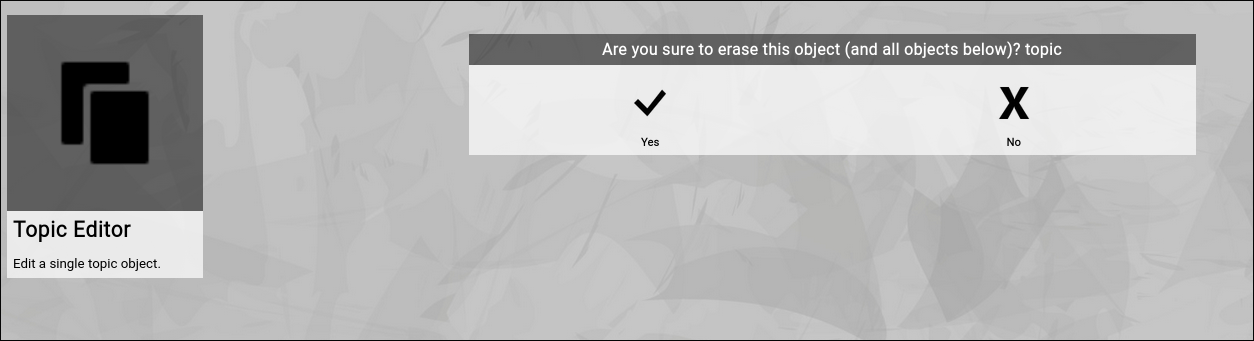
(Confirmation dialog of the Zingoolarity erase screen)
|





