|
|---|
 |
 |
|---|
 |
|---|
 |
|---|
|
|
|---|
 | Zingoolarity Homepage | | TOPICS | | The Main Shortcut |
| The Main Shortcut |
|---|
The Main ShortcutBy intention, this is the top-most option in the "Main" part of the Zingoolarity home page or the main menu. It is not a functionality in itself, but will invoke the "Contextmap" view on the top-most topic in the topic hierarchy (which is by default called "Home", but can be renamed if needed). The idea behind this is that when you start using Zingoolarity to model and support your product organization, you create a "landing page" or "home page", which contains all relevant entry points to your information. The default view is "Contextchart", because the first thing people should see when visiting your product organization is the contextual overview of the relevant pieces which are its building blocks. This could be for example:
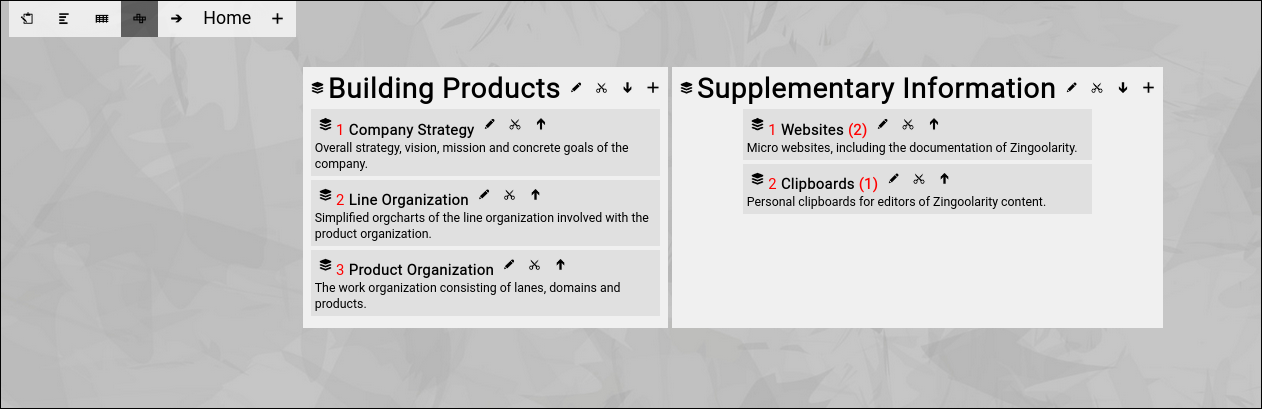
And here is how such a setup may look in Zingoolarity:
In the following chapters you will learn how to setup something like this and how the 3 main views and all other parts actually interact. Select the "Main" option from the Zingoolarity home page or the main menu. At the beginning, you may achieve the same effect by selecting the "Contextchart" option from the Zingoolarity home page or the main menu. The difference is that the "Main" option will always return to the top-most "Home" topic (while switching to the Contextchart view) and the "Contextchart" option will resume where you left off (if you focused on another topic in the hierarchy and for example resume working on the next day, the "Contextchart" option will automatically return you to the topic you have previously focused). If you select the "Main" option on a fresh installation of Zingoolarity, the "Home" topic will be boringly empty:
Let us first have a look what can be seen here: On the left, you will see the so-called "breadcrumb" (starting with four icons); it always shows the full path to the currently focused topic, which is currently the top-most topic called "Home", with a small arrow on the left of it. The arrow is actually a short cut to edit the associated topic directly (which is explained in detail further down in this chapter). Clicking on a name in the breadcrumb will "drill into" the topic (which is also explained later). The left-most icon toggles between "Editing" and "Presenting"; the default is "Editing". The next three icons allow you to quickly switch between the three view modes (from left to right):
At the moment, "Contextchart" is highlighted, as this is the current view mode. And finally, the small "plus" button allows you to create a new topic below the currently focused topic. |