|
|---|
 |
 |
|---|
 |
|---|
 |
|---|
|
|
|---|
 | Zingoolarity Homepage | | TOPICS | | Matching an Invoice to a Budget |
| Matching an Invoice to a Budget |
|---|
Matching an Invoice to a BudgetYou have potentially learned about the concept of "Budgets” already, when we discussed the topic editor screen. Zingoolarity allows you to optionally associate a budget with any topic.
As soon as you do so, "totals” will also appear in the different views (contextchart, kanbanboard and roadmap). But having just a budget is not good enough to manage the outcome. And it is tremendously simple to do so in Zingoolarity: So whenever you receive an invoice from a supplier, you create a new topic somewhere in your Zingoolarity instance (this is completely flexible; you could create a topic hierarchy to contain invoice topics by month or you can create a container topic inside of each project or product topic to hold the incoming invoice topics it is completely up to you). So let us assume that the current topic you are editing represents an invoice and you now want to match this invoice to a budget. You can switch to the matches associated with a topic by clicking the "Matches” button inside of the topic editor screen.
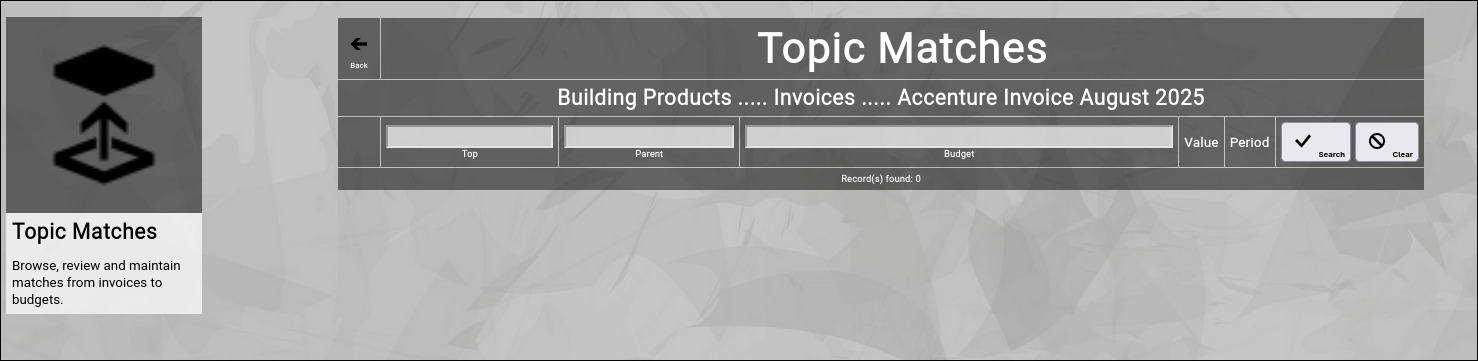
This screen works a little bit different compared to the other screens you have already encountered in the context of the topic editor. You can enter part of the name of a
Here is an example, assuming you received an invoice from your consulting provider "Accenture” and you know that you have planned a dedicated budget for Accenture:
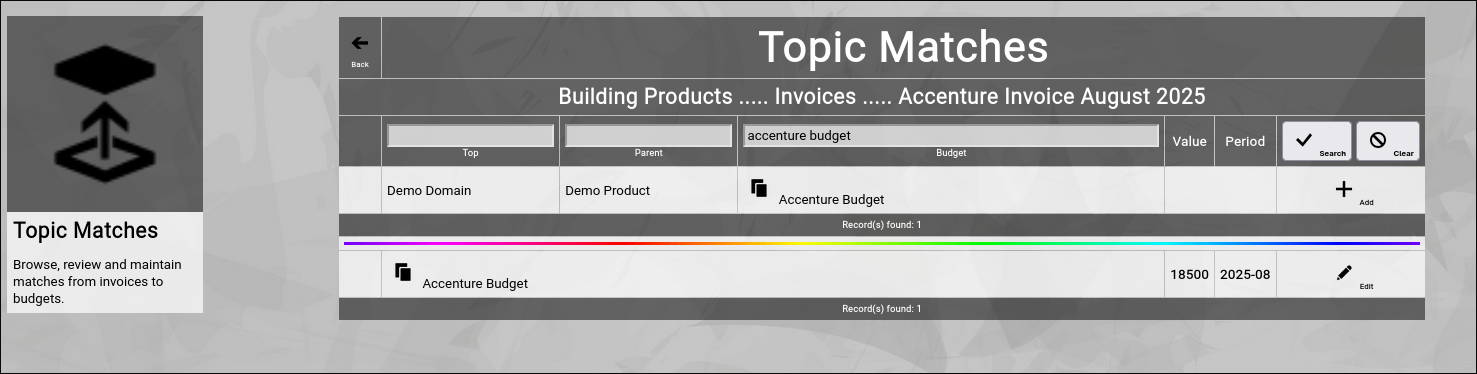
You now click on the "Add” button next to the budget:
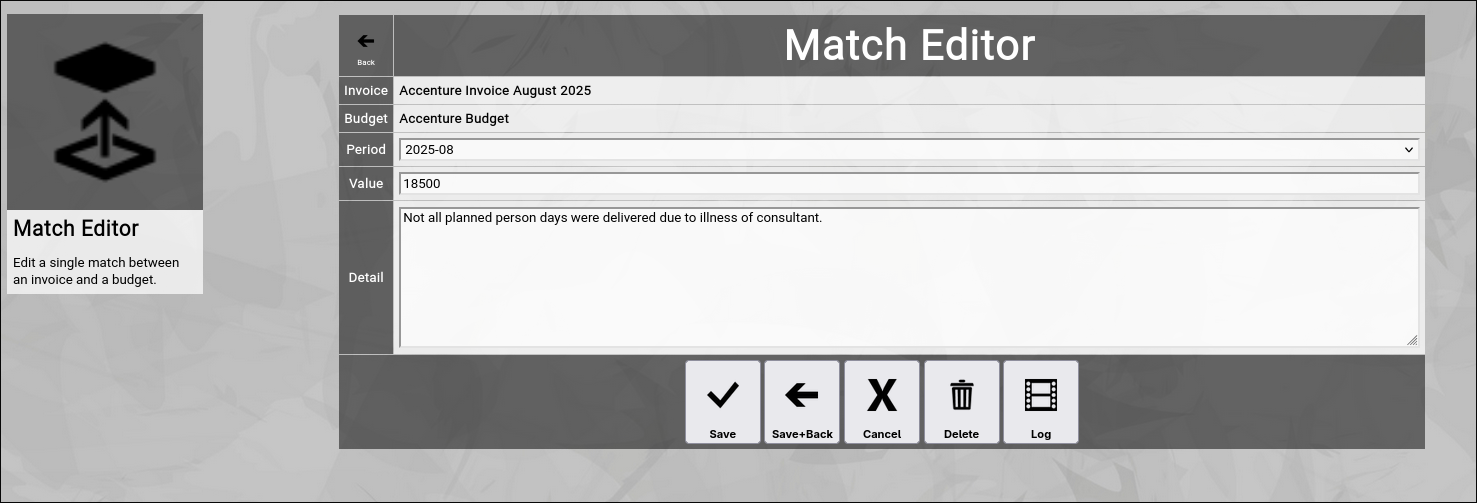
This will create a new match between the invoice topic and the budget topic. You additionally update the following fields:
Much like in the topic editor screen, you have a selection of buttons to complete your input:
When you return to the previous screen, you will see the match which you just added in the list of the matches:
And you will also see the "rainbow bar” again, marking the match which you just edited. Editing an existing MatchYou will also see the "Edit” button next to each and every match. Sorting of the MatchesIn general, the matches are sorted in period order of the matched budget. Going Back to the TopicYou can click the "Back” button in the upper-left corner to return to the previous screen (in this case, the topic editor screen). |