|
|---|
 |
 |
|---|
 |
|---|
 |
|---|
|
|
|---|
 | Zingoolarity Homepage | | Configuration | | Using the Form Browser |
| Using the Form Browser |
|---|
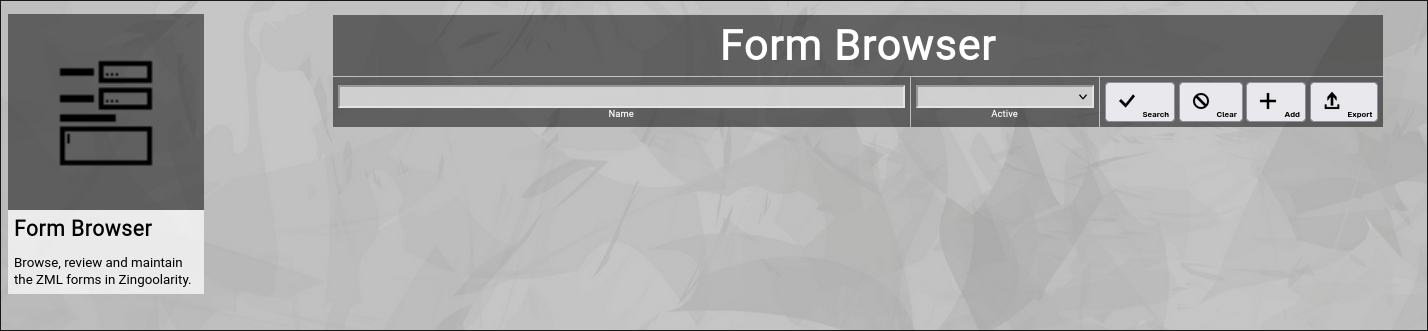
Using the Form BrowserThe form browser allows normal users to browse and view the available forms in your Zingoolarity instance and allows administrative users to maintain these (create, update and delete). To invoke the form browser, select Forms from either the main menu or from the home page:
Searching & Filtering for FormsThe form browser allows you to search and filter for the following form attributes:
Click the Search button to perform the search or click the Clear button to reset the already entered search criteria. Exporting FormsIf you are an administrative user, you can export the currently filtered list of forms in ZML format to a local file. Click on the Export button to perform the export. A file named export_form.txt will be created in your local Downloads directory. Adding a New FormTo add a new form, click the Add button.
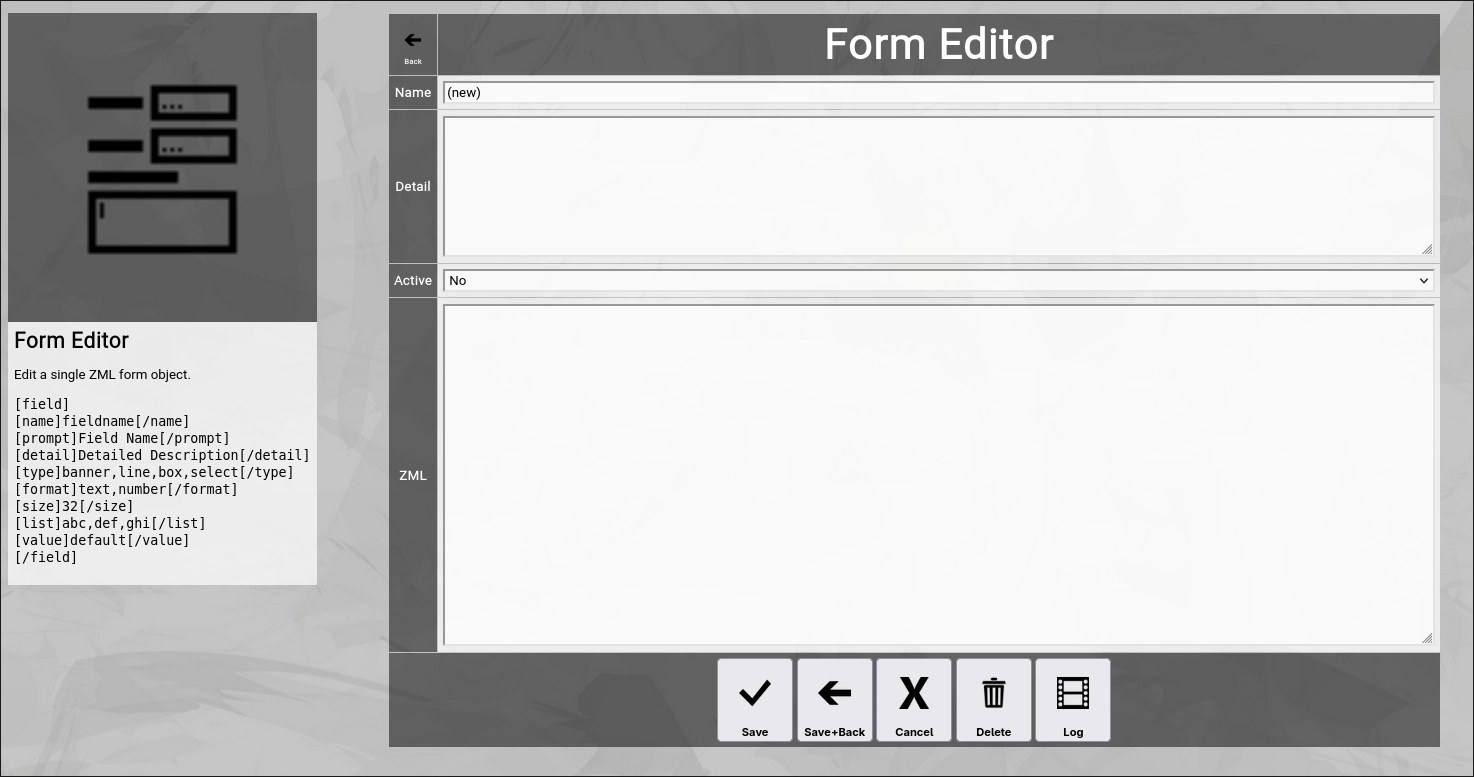
Let us have a look at the different available attributes of a form:
At the bottom of the screen, a couple of buttons are available:
The Form Definition Language in ZMLA form definition in Zingoolarity consists of 1..N field tags, which in turn contain a number of name, prompt, detail, type, format, size and list tags. Here is the syntax: [field] [name]fieldname[/name] [prompt]Field Name[/prompt] [detail]Detailed Description[/detail] [type]banner,line,box,select[/type] [format]text,number[/format] [size]32[/size] [list]abc,def,ghi[/list] [value]default[/value] [/field] For a concrete example, you can have a look at the default "Application Form", which is usually pretty much illustrative. Editing an Existing FormTo edit an existing form, click the Edit button next to the form in the list shown in the form browser after searching. |