Changing the Settings
Zingoolarity has a couple of global settings, which can be set by clicking on the small settings icon in the upper-right corner of the browser screen:
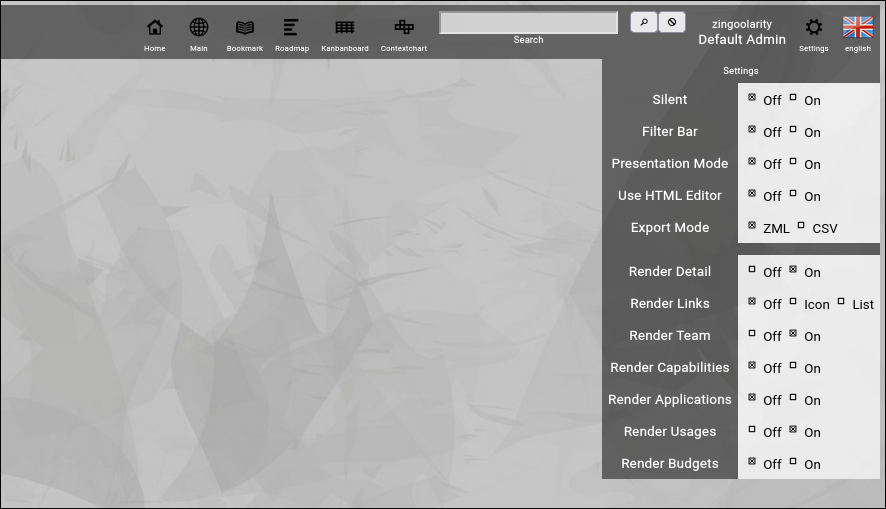
(Zingoolarity settings screen)
Here is an explanation of the different available settings:
- Silent
You may have noted (depending on the browser you use) that there is a background sound in the splash screen and a click sound whenever you select something in Zingoolarity.
To turn this off, you can use the option in your browser or you can activate the Silent option in this screen.
- Filter Bar
This settings allows you to toggle the filter bar in the 3 view modes of Zingoolarity.
The filter bar provides additional filter possibilities for the selected view.
- Presentation Mode
This setting allows you to toggle the presentation mode.
In presentation mode the filter bar and all buttons are hidden, so that the different rendering modes look uncluttered for presentation purposes.
- Use HTML Editor
This setting allows you to toggle the usage of the integrated WYSIWYG HTML editor for the detail field of topics.
This is useful if you want to format the descriptions of topics.
- Export Mode
This setting allows you to toggle the export format between ZML (which can be re-imported) and CSV (which can be imported into spreadsheets).
- Render Detail
You can activate the display of the detailed description text per topic (see the introduction of the topics further down in this guideline).
This setting allows you to globally turn this on or off.
- Render Links
Zingoolarity allows you link topics to each other.
This setting allows you to optionally display these links in the different rendering modes as either an icon (which you can click to drill to the linked topic) or as a line of text showing the name of the linked topic (which is also clickable).
- Render Team
You can activate the display of the associated team per topic (see the introduction of the topics further down in this guideline).
This setting allows you to globally turn this on or off.
- Render Capabilities
You can activate the display of the associated capabilities in the different rendering modes per topic with this setting.
This is helpful, if you associate all available business capabilities with lanes or domains on your product map in the early stages of building up your product organization.
- Render Applications
You can activate the display of associated applications in the different rendering modes per topic with this setting.
This is helpful, if you associate all available applications with lanes or domains on your product map in the early stages of building up your product organization.
- Render Usages
You can activate the display of associated intersections between capabilities, applications and products with this setting.
This is helpful in the 2nd stage of your product organization, when you start creating and improving your target architecture.
- Render Budgets
You can activate the display of associated budgets in the different rendering modes per topic with this setting.
Whenever you select an option, you will be automatically returned to the screen you used before.
The options available here will be explained in detail in the context of the related functions in this getting started guide further down. |





